
Original link:https://www.coolapk.com/…
Table of Contents
1. Preface
2. Initial ideas
3. Practical exploration
3.1 Clipboard Sync
3.2 Notification push notifications and sending and receiving phone calls and SMS
3.3 ComputerDesktop sync with iPhone
3.4 Sync Windows computer screenshots
3.5 Markdown editing synchronization
3.6 Adding the finishing touch
3.7 Power Automate
4. Summary
1. Preface
Some time ago, my MacBook Pro was damaged in the extremely humid environment of Hui Nantian, so I am restoring itShoppingDuring the computer session, I suddenly fell into a trap in the Windows camp: macOS had been used for too long, and I wanted a change of feeling. The trade-off was a gap between Windows computers and iPhones, so I needed to find a solution to achieve it in the most seamless way iOS and Windows interoperability.
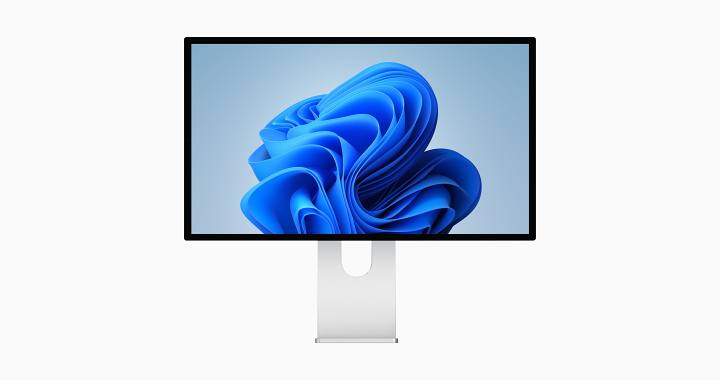
Upgrade to a new computer, and also replace itMonitor
2. Initial ideas
By default, iOS and Windows have no connection at all—each playing their own game and having nothing to do with each other. So I considered a type of iPhone that would be as avoidable as possibleInstallationAny software on a Windows computer should use the most reliable and simple solution possible to achieve the following functions:
1. Copy content on iPhone and paste on Windows computers; Conversely, you also need to copy content on a Windows computer and then paste it on an iPhone;
2. Any notifications received on iPhone will be displayed on Windows computers, and SMS and incoming calls on iPhones can be received or answered on Windows computers;
3. Desktop content on Windows computers needs to be synchronized in real time to the iPhone, enabling access to Windows desktop files anytime, even if they are not the same WiFi can still be obtained normally;
4. Screenshots generated on Windows computers must be synchronized to your iPhone in some way at any time; After processing these screenshots on the iPhone, transfer them to the Windows computer with minimal effort;
5. On iPhoneApplicationMarkdown files created or edited by software can also be edited on Windows using other software, and the edits to be generated are processed in real timeUpdateCome to the iPhone side;
6. It's best to view your iPhone album on a Windows computer. Other features are even better, but you can also choose not to have them. These features also include iCloud Keychain, iCloud Bookmarks,Apple Music,Apple TV+ etc.;
7. It's best to find a Windows computer that can rival shortcuts, making it easy for me to set up workflows I need anytime.
3. Practical exploration
3.1 Clipboard Sync
To be honest, I couldn't find or implement a clipboard sync solution on iPhone that is easy to implement on Windows without relying on third-party software. However, during this process, I made some positive efforts and solved the problem of being unable to send text information copied from the iPhone to the Windows computer. However, retrieving the text on the Windows computer was not smooth. My implementation plan is roughly as follows:
1. Create a new shortcut on iPhone to append copied text, links, and other clipboard content to designated text files on iCloud Drive;
2. On a Windows computer, download from the Microsoft Store DownloadInstall the iCloud client to synchronize the clipboard text files from the clipboard in real time to your Windows computer;
3. Install the Power Automate application on your Windows computer, create rules, and extract the last additional content from the clipboard text file mentioned above, then copy it to the clipboard.
The idea is perfect: recording clipboard content on iPhone and syncing it to Windows works fine, and using Power Automate to retrieve the final text content also works on Windows. The only downside is that iCloud file sync on Windows isn't timely. When I copy a piece of text and add it to the sync file on iPhone, Windows refreshes in about a minute or two. Clipboard syncing takes one or two minutes to come over, which is really slow. I haven't yet studied whether I can set iCloud refresh on Windows to real-time. For example, if I modify files in iCloud elsewhere, Windows will sync instantly.
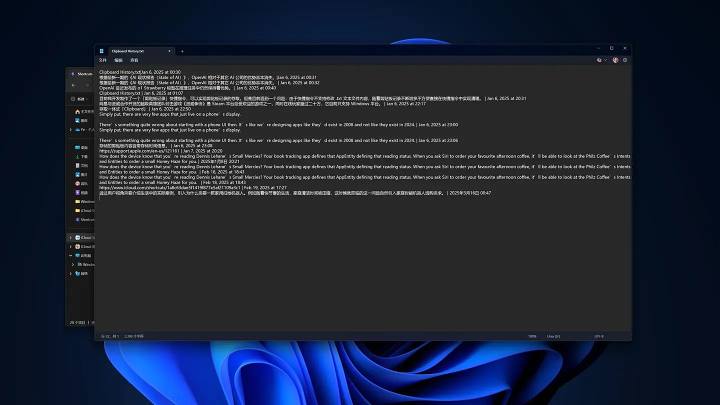
This is the file that writes your iPhone to the clipboard and syncs it to your Windows computer
3.2 Notification push notifications and sending and receiving phone calls and SMS
On a Mac, sending and receiving text messages from the iPhone, receiving incoming calls from the iPhone, and even receiving various notifications on the iPhone is no problem, but on a Windows computer, this is not easy. Fortunately, in the past, I should have known it on ZhihuDigitalI wrote an answer about a Microsoft software that can display message notifications, calls, and SMS on the iPhone on Windows computers:
"Microsoft's announcement was released on December 11, teasing the issue of 'file transfers.' To quote a concept that was popular some time ago, this is a Windows PC's attempt to further "force compatibility" with the iPhone."
This software is called Link to Windows. After installing it on your iPhone, bind and log in to the Phone Link app on your Windows computer, then grant some advanced permissions like Bluetooth, notifications, phone calls, and SMS, and you can use it. In tests, it can connect to the iPhone in real time, but there is a delay in pushing calls, text messages, and other notifications. After receiving them on the iPhone, it takes a few seconds before the pop-up notification appears on the Windows computer.

It can display information such as iPhone battery level and notifications in widgets

However, when the iPhone receives a new notification alert, Windows will display the notification content in the Notification Center on the right side
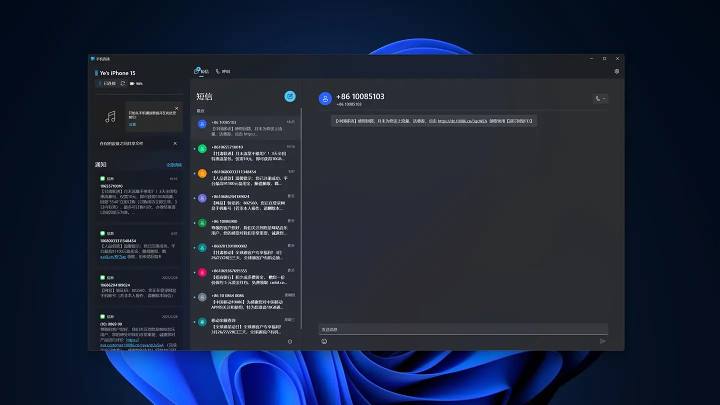
After opening the app, it looks like this: text messages, calls, and moreMusicControl
3.3 Syncing the desktop to iPhone
On Mac, you can sync your desktop to other devices via iCloud Drive, including syncing to your iPhone. Now Windows can also sync iCloud Drive by installing iCloud, so is it possible to include Windows desktop folders into iCloud Drive to achieve desktop sync?
The answer is achievable. On a Windows computer, open File Explorer, right-click the system desktop folder, open "Properties," and tap the "Location" tab to bind the desktop folder to the iCloud Drive desktop folder. I don't have a Mac to use now, but if I do, this feature can directly sync Windows and Mac desktops.
Next, on your iPhone, access or set up the Windows desktop folder. Access is simple: just open the desktop sync folder set up on Windows in iCloud Drive in the "Files" app to view or edit the contents. Setting up a synced desktop folder on iPhone is a bit tricky. You just use the desktop widget to set up a large widget from the "Files" app, then bind the folder to the synced desktop folder. The iPad works the same. You can refer to the instructions in this answer for specific steps:
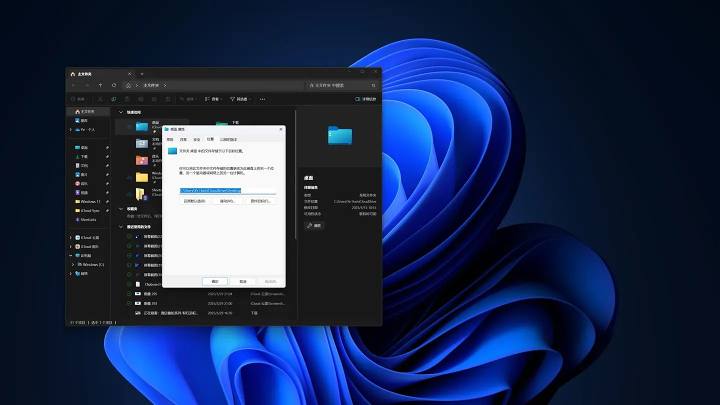
You can set the location of the Windows desktop folder within iCloud Drive
3.4 Sync Windows computer screenshots
On Windows 11, it seems you can no longer continue to use the frequently used versionPrt ScThe key now performs a screenshot operation, and the shortcut key has changedWin + Prt ScCombination keys. If you press directly,Prt ScThe key will only open the built-in screenshotToolsIt may look worse, but the real benefit is that you can set the screenshot storage directory in the screenshot tool. Because of this change, I set the Windows screenshot storage folder to iCloud Drive, so every screenshot I take syncs to my iPhone here, making it easier to create images or post them on Zhihu.
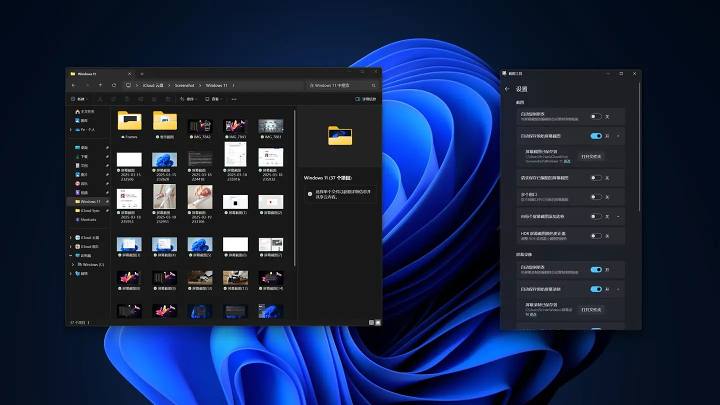
Windows computer screenshot synced with iPhone
3.5 Markdown editing synchronization
I bought iA Writer, a well-known markdown typing tool, on iPhone and Mac, and with iCloud Drive, it's very convenient to use. However, I ran into some issues on Windows computers. I didn't want to buy iA Writer on the Windows platform, and I still had to synchronize editing the markdown markdown text files created or edited with iA Writer on iPhone. Fortunately, this was easy to achieve.
Files created or edited with iA Writer on iPhone are all stored in the iCloud Drive iA Writer directory. Unlike other platforms, the file directories are open, transparent, and shareable. Because of this, I just need to find software on Windows that lets it open and edit these markdown files. After editing, I save them and they automatically sync to the iPhone. Although this sync experience is inferior, Mac is perfect, but it can also be almost perfect. So I selected and installed Typedown software in the Microsoft Store. After searching around, only this software looked good, had decent features, and was free.
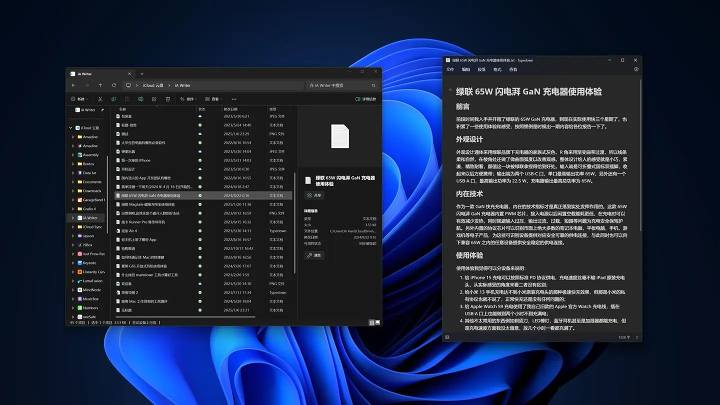
Just open the file from iA Writer with Typedown
3.6 Adding the finishing touch
Apple's software developed for the Windows platform is quite useful, including iCloud and Apple Music and Apple TV+. iCloud includes iCloud Drive (for shared files), iCloud Albums (for shared albums), passwords and keychains, Safari bookmarks, and other features, as well as common functions for syncing between iPhone and Mac. Email, calendar, contacts, memos, and the iWork trio either take a different path or can only be used through iCloud.com.
1. You can solve the email and calendar features by logging into the new Outlook email included in Windows 11;
2. You can view your contacts in Outlook or directly use the aforementioned Phone Link to solve the problem;
3. Memos and iWork are the hardest to handle and can only be resolved by accessing the webpage.
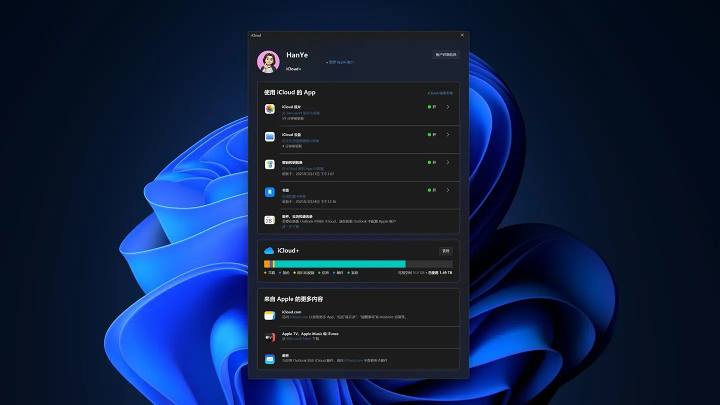
Some important features are here
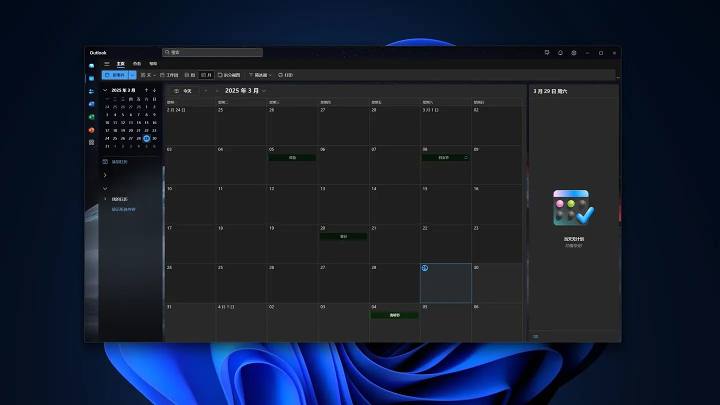
With email synchronization, calendar synchronization is also available
3.7 Power Automate
This is indeed a tool very similar to shortcuts. Unfortunately, it lacks the functions I need most—image adjustment, overlay, and image transformation—so it can't be integrated into my image creation workflow like shortcuts. Fortunately, it works well for text processing, dictionary processing, and other functions. If I need it in the future, I'll consider it again. Currently, I use it to create a workflow where I append copied content to clipboard content on iPhone and synchronize files. The experience isn't great, but at least it's usable.

A bunch of advanced features are still waiting for further development
4. Summary
As I often say: "You can't use macOS the way Windows does, because macOS isn't Windows at all." This principle still applies today: Windows itself isn't macOS, so it can't use macOS's methods anymore. So I didn't expect to achieve system-level clipboard sync, relay, or airdrop, but I did implement everything it could.
This article is for reference only. The Windows operating system involved is 11, iCloud, Apple Music, Apple TV+, and Typedown are all downloaded and installed from the Microsoft Store. There are no commercial collaborations or plans for future commercial integration. Thank youRead on!
![[Open Source Reading] November 950+ carefully proofread book source compilation and update - Baiyun Blog](https://www.bybk.cc/wp-content/uploads/2023/02/Screenshot_20230222-1001582.png)



![[Text and Image Summary] Summary of Terminals Currently Supporting 5G-A Carrier Aggregation --- Includes How to Check Carrier Aggregation Enabled on iOS - Baiyun Blog](https://www.bybk.cc/wp-content/uploads/2024/04/20240407140712630-e26ee861710dd3b075a1302dd00392d5e1db60a1.jpeg)

![[Open Source Reading] January 2024 ≈ 400 carefully edited book source compilation and update - Baiyun Blog](https://www.bybk.cc/wp-content/uploads/img/af867764c3780f0b7da88376fca7bf92.png)
![[Open Source Reading] November 950+ carefully proofread book source compilation and update - Baiyun Blog](https://www.bybk.cc/wp-content/uploads/2023/02/Screenshot_20230222-1001582-1024x593.png)

![[Open Source Reading] October 1300 Book Source Update - Baiyun Blog](https://www.bybk.cc/wp-content/uploads/img/1eeb6ae31cde88ab39faa2f19651638d.jpeg)
![[VMOS PRO 2.9.6 Member Edition] - Baiyun Blog](https://www.bybk.cc/wp-content/uploads/img/c303a7a50d3ebfa235cc380190db2980.png)





No comments yet