
Applicable to the system#KernelSU##APatch##隐藏root #
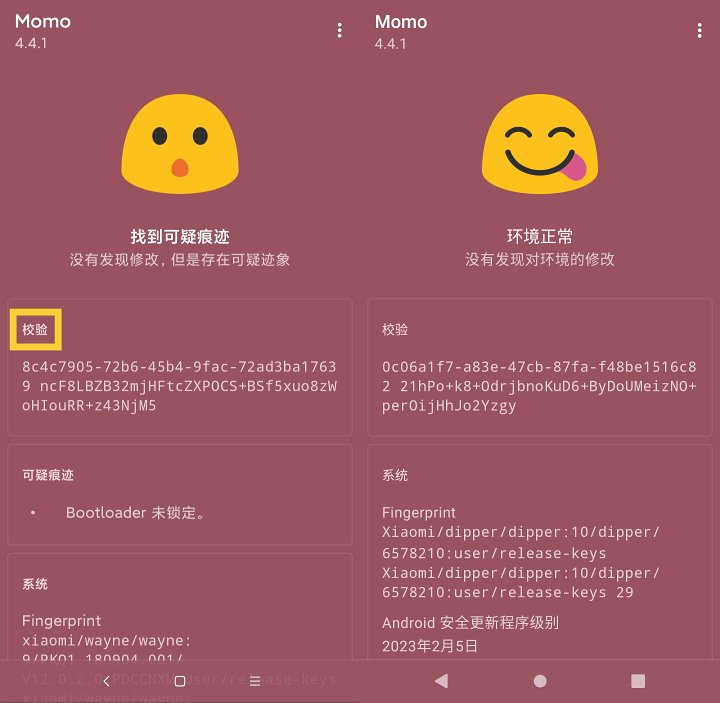
MomoI'm sure most of you have heard of the app, but if you don't, that's okay. This is the main articleTutorialI will also reintroduce it. Of course, besides introducing Momo, this tutorial also covers some tips on how to solve Momo issues. After reading this tutorial, I believe you can also clear Momo like in the picture above. Forgot to mention, in the image above, Momo shows "Checksum" or ? This is what people call Momo detection, Momo (bypassed), and a perfect environment.
This tutorial is divided into ten parts. The first part introduces MomoUsage scenariosand usage; The second part introduces which prompts in Momo affect hiding; The third part is (Momo hint)"No response to service"Solution; The fourth part is:TEE damage"Solution; The fifth part is:ART parameter abnormalities"Solution; The sixth part covers solutions for "SELinux in permissive mode"; The seventh part is the solution for "Zygote being injected"; Part Eight is:Permission system anomaly/Package management service exceptions"Solution; The ninth part is "Being In."Debugging environment"Solution; The tenth part is "Already."Enable debugging mode"Solution."
1. Usage scenarios and usage of Momo
(1)Mask usersChecked my main account@topmiaohan的Hide rootA series of tutorials that strictly follow the steps in my tutorials to hide, but there are still apps that won't open or crash (such as banking, finance, and gaming apps).
(2)KernelSUOrAPatchUsers encountering apps that won't open or crash (such as banking, financial, gaming-type apps)
If you encounter the situation described in scenarios (1) and (2) above, you can download Momo from the pinned comments in this tutorial and install it. After installation, don't rush to open it. If you're a mask user, follow the steps in my main account's hidden root nanny tutorial for banking and financial applications, hide the root on Momo, and then open Momo; If you are a KernelSU or APatch user (since they "automatically" hide the root from Momo), you don't need to do anything—just open Momo.
2. Hidden Influence Tips in Momo
If you open Momo after hiding the root, Momo will prompt you for the following items, you can resolve it by making sure Momo does not show (or not) the items listed below. Why do I say this? Because after my long-term research, I found that each of the items I've listed below may have some impact on hidden roots. Sometimes I try to make Momo unable to detect these listed issues, which can also open apps that crash or fail to run. I've also written solutions for these Momo tips below. You can choose different parts based on your Momo prompts.
The prompt in Momo that affects hiding root (based on Momo version 4.4.1 test) is as follows:
Found itZygisk Find the executable program "su"
(If you are a Mask user, these two solutions can be found on my main account.)@topmiaohanHidden root nanny-level series tutorials)
No response to service. Please allow Momo to start the service; some devices may need to disable battery optimization.
(See Part 3 of this tutorial for solutions)
TEE damage
(Solution can be found in Part 4 of this tutorial)
ART parameter abnormalities
(Solution can be found in Part Five of this tutorial)
SELinux is in a tolerant mode
(Solution can be found in Part 6 of this tutorial)
Zygote is injected
(Solution can be found in Part 7 of this tutorial)
Permission system exceptions/packet management service exceptions
(Solution can be found in Part 8 of this tutorial)
It is in a debugging environment
(Solution can be found in Part 9 of this tutorial)
Debugging mode has been activated
(Solution can be found in Part 10 of this tutorial)
The Momo prompt does not affect the hidden root (based on Momo version 4.4.1 testing) as follows:
Find Magisk
Partition mounting anomaly
The device is running a non-original system
Find the quiltMagisk moduleModified files
Data is not encrypted, and mount parameters have been modified
init.rc was modified
Suspicious files such as Magisk or TWRP are present
Non-SDK interface restrictions fail
Bootloader is not locked
Discover code injection
Seccomp is not open
3. No response to service
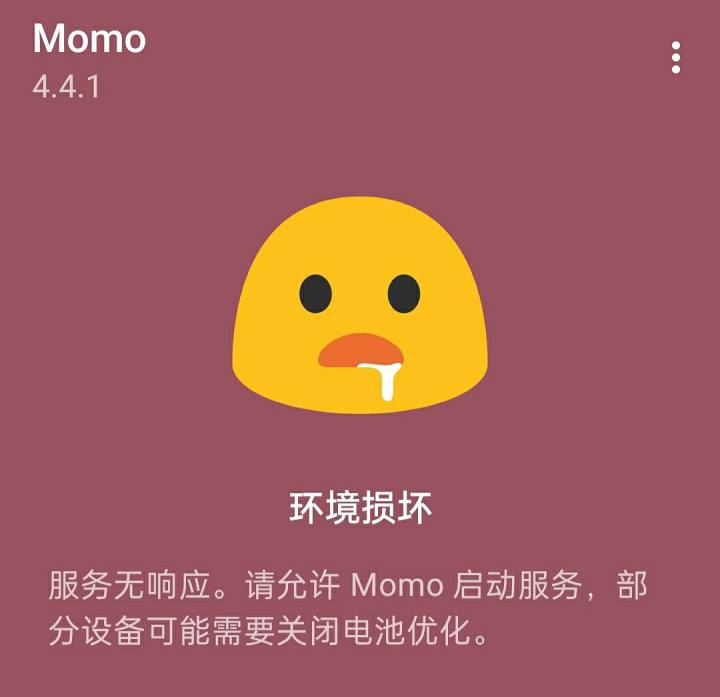
The "Service Not Responsive" message often appears on models like Realme, OPPO, and OnePlus. Once you see this message, you won't be able to use Momo to check your system environment further. The reason seems to be that the systems of these models interfere with the detection service of the latest Momo (version 4.4.1), preventing further detection of Momo version 4.4.1.
Solution: If you are not one of the above models, you can leave a comment for consultation. If you have the above model, please uninstall Momo version 4.4.1 and install the older version 4.3.1 (which is not much different from version 4.4.1). You can find Momo version 4.3.1 in the pinned comments of this tutorial.
4. TEE damage
Momo's "TEE damaged" message means your device's TEE is either permanently damaged or "dead." Whether permanently damaged or "dead," these are very difficult to repair. However, when the "TEE is damaged," there is another situation you need to resolve. Please read on for details.
When Momo prompts "TEE is damaged," it also appears with "Bootloader not locked." This "Bootloader not locked" issue needs you to resolve (because it affects the hidden issue). The solution is as follows:
If you are a user of official masks, Alpha Mask, or KernelSU with "TEE damage," then install itShamikoAfter that, Momo will no longer prompt "Bootloader not locked"; If you are a user of kitsune Mask/kitsune Lite (Delta Mask), since you cannot install Shamiko, you can install a mask module I developed myself (a Magisk module called "Improving System Environment Reset Sensitive Properties"), which can be found in the pinned comments of this tutorial. Generally, after installing and rebooting, Momo should no longer prompt "Bootloader not locked."
5. ART parameter abnormalities
If your Momo prompts "ART parameter abnormality," please first check the installed oneLSPosedIs the version the latest? The latest version of LSPosed is 1.9.2 (7058). If you are not using this version, please upgrade to it. If you don't know where to download LSPosed 1.9.2 (7058), you can check out the pinned comments in this tutorial.
If you have installed the latest version of LSPosed but Momo still prompts "ART parameter exception," please check if your installed version is Android 9. If not, please skip this section and move on to the next one! If so, use MT Manager to delete the system.prop file under /data/adb/modules/zygisk_lsposed or /data/adb/modules/riru_lsposed. After deleting it, please restart your phone, then turn on the phone, uninstall and reinstall Momo. Momo should no longer show "ART parameter abnormality."
If you have installed the latest version of LSPosed and your Android version is above 9, but Momo still shows "ART parameter abnormality," please check if your Momo also shows "SELinux is in permissive mode"?
If so, please first refer to the sixth section below to resolve the Momo prompt "SELinux is in forbearance mode," because SELinux being in permissive mode can also cause Momo to prompt "ART parameter abnormality." If Momo does not prompt "SELinux is in tolerance mode" but still shows "ART parameter abnormality," you can try uninstalling and reinstalling Momo to see again.
6. SELinux is in permissive mode
I have written the reasons and solutions for Momo's prompt "SELinux is in permissive mode" in the following two tutorials. You can choose one based on your system to view them. If you are using an official system, please watch the first episode; if you are an unofficial system (such as an official modified system, third-party system, or ported system), please watch the second issue.
[Link] @By_miaohan with images and text...
[Link] @By_miaohan with images and text...
7. Zygote is injected
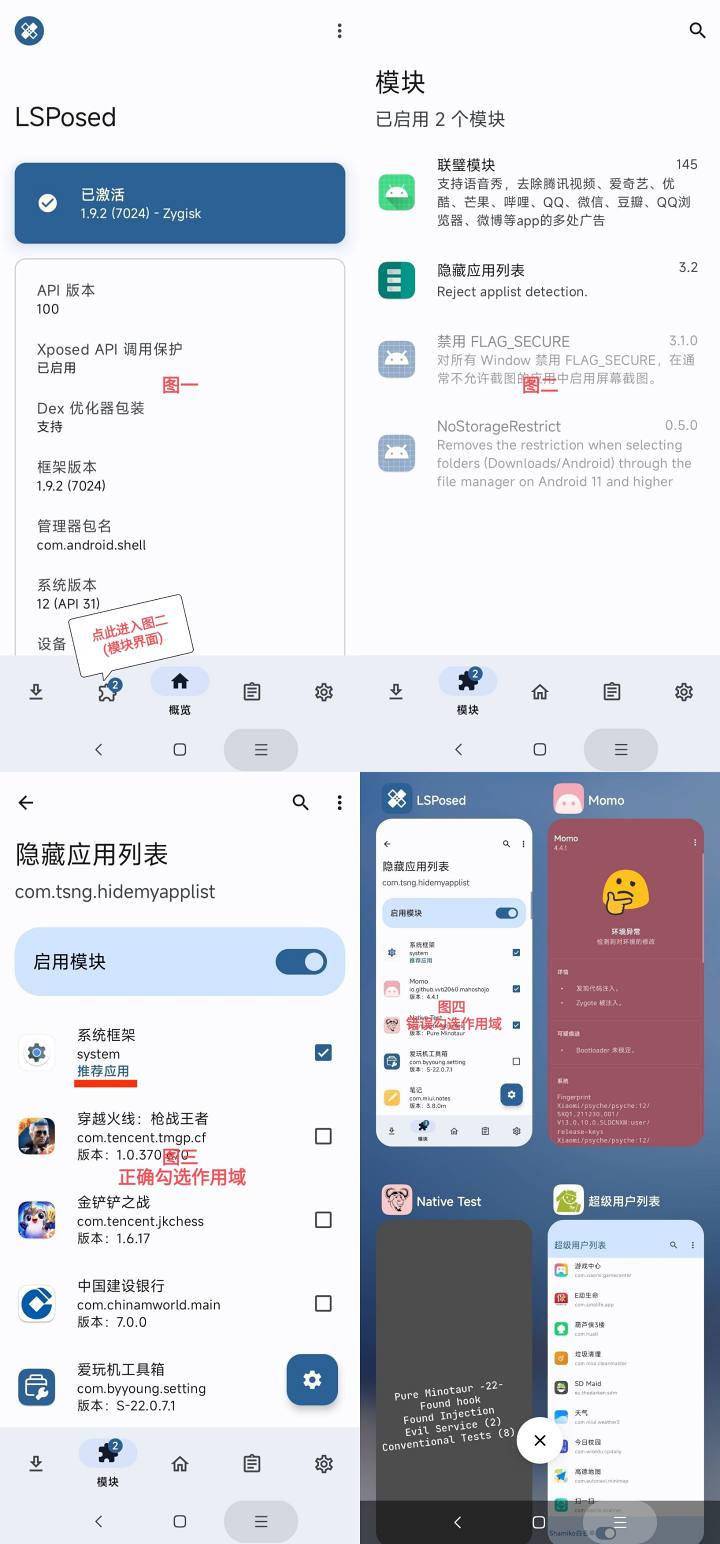
Momo prompts "Zygote is injected" because you enabled the scope of the Xposed module and selected Momo. Considering that quite a few beginners don't know what "Xposed module" and "scope" are, let me briefly introduce the meanings of these two terms.
First, let's talk about the "Xposed module." Explaining the "Xposed module" in professional terms might be difficult for beginners to understand. So if you're a beginner and know that the applications shown in the LSPosed module interface (see the second interface in the figure below) are the Xposed module, that's enough. Taking the interface in Figure 2 as an example, we can see that the enabled Xposed module includes "Hide Application List." Click "Hide App List" to enter the third screen. The interface in Figure 3 shows all the apps you have installed, and each app has a □ option for you to ✓ select. This is the scope selection interface. From Figure 3, we can also see that "System Framework (Recommended Applications)" has been automatically ✓ checked, indicating that the scope of "Hidden Application List" in LSPosed is "System Framework." If we check Momo and NativeTest in the scope (see Figure 4), Momo will prompt "Zygote injected," and NativeTest will also receive a bunch of exceptions.
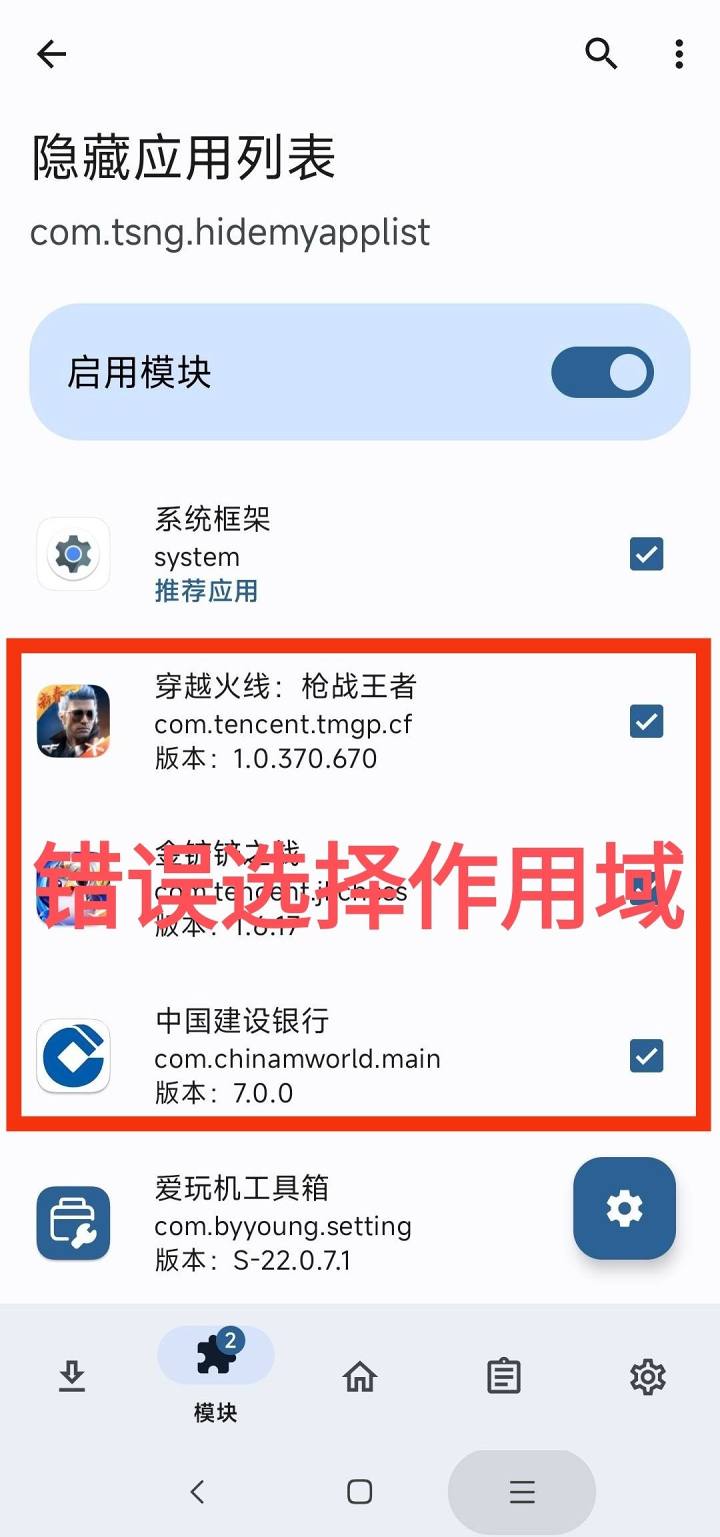
In short, whether it's the "Hidden App List" or other Xposed modules, their scope can only select "Recommended Apps," not "Recommended Apps," especially for banking, financial, and gaming apps. In short, checking the bank, financial, and gaming apps (as shown below) in LSPosed is incorrect! is not allowed! Some people can't open banking or financial apps or get banned in games because they have selected banking or gaming apps in the scope of a certain LSPosed module.
8. Permission system exceptions/package management service exceptions
Momo prompts "System Exception with Permissions, Package Management Service Exception" because you installed "Core crack"The software or you are an official modified third-party system.
Solution: Open "Core Cracks," disable the "Disable Package Manager Signature Verification" option, and restart your phone. After booting up and opening Momo, you won't see the Momo prompt "Permission System Exception or Package Management Service Exception." If that still doesn't work, uninstall the "core crack" software and restart your phone to try again.
If you are a third-party system with an official modified system or have not installed the "core crack" but still show "Permissions System Abnormality" or "Package Management Service Abnormality," then there is basically no solution.
9. Operating in a debugging environment
This prompt appears because your system is enabledGlobal debugging, When the system starts global debugging, it is easily detected by banking and financial applications.
Solution: To fix the Momo message saying "In debug environment," you can install my self-developed Magisk module (a module called "Improving System Environment by Closing Global Debugging"), which can be found in the pinned comments of this tutorial. Generally, after installing and restarting the computer, Momo will no longer prompt "In debug environment."
10. Debugging mode has been enabled
Debug mode is enabled because you enabled it in Developer OptionsUSB debuggingIf you turn off USB debugging, it won't prompt. If you don't know how to go to the developer options, you can search for your model's brand on Baidu. For example, if you have a Xiaomi 10 phone, you can search for the keyword "How to enter the developer options on a Xiaomi phone" on Baidu.
If after turning off USB debugging Momo still shows "Debug mode enabled," you can force Momo to run in the background before turning it back on to try. If that still doesn't work, try restarting your phone and try again. If restarting your phone still doesn't work, it means your system may automatically enable USB debugging when powering on. In this case, you can install my self-developed Magisk module (a Magisk module called "Improving System Environment: Auto-Shut USB Off USB Debugging"), which can be found in the pinned comments of this tutorial. Generally, after installing and restarting the computer, Momo will no longer show "Debug mode enabled."
![[Text and Image Summary] Summary of Terminals Currently Supporting 5G-A Carrier Aggregation --- Includes How to Check Carrier Aggregation Enabled on iOS - Baiyun Blog](https://www.bybk.cc/wp-content/uploads/2024/04/20240407140712630-e26ee861710dd3b075a1302dd00392d5e1db60a1.jpeg)


![[Open Source Reading] January 2024 ≈ 400 carefully edited book source compilation and update - Baiyun Blog](https://www.bybk.cc/wp-content/uploads/img/af867764c3780f0b7da88376fca7bf92.png)
![[Open Source Reading] November 950+ carefully proofread book source compilation and update - Baiyun Blog](https://www.bybk.cc/wp-content/uploads/2023/02/Screenshot_20230222-1001582-1024x593.png)
![[Open Source Reading] October 1300 Book Source Update - Baiyun Blog](https://www.bybk.cc/wp-content/uploads/img/1eeb6ae31cde88ab39faa2f19651638d.jpeg)
![[VMOS PRO 2.9.6 Member Edition] - Baiyun Blog](https://www.bybk.cc/wp-content/uploads/img/c303a7a50d3ebfa235cc380190db2980.png)





- Latest
- Hot
Author only