
Objective Effects:
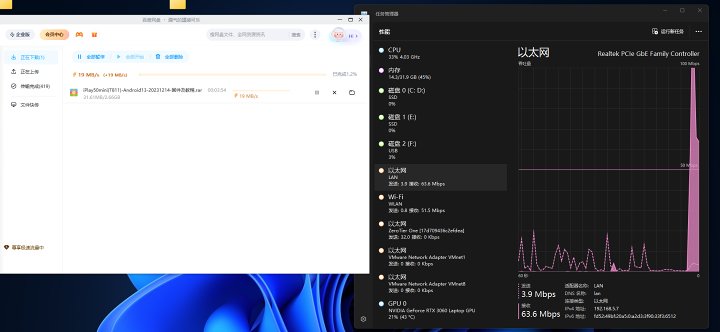
Multithreaded downloadsEnables network speed stacking
Notes:
0. BookTutorialUnlike the method of overlaying with additional flashing OpenWRT and MWAN for overlay, this is mainly aimed at multithreading on WindowsDownloadBehavior is accelerated.
1. It is recommended to use it when multiple routes have similar speeds. The LAN maximum speed used in this tutorial is 75Mbps, and the WLAN upper limit is about 79Mbps.
2. It is recommended to use multiple routes with the same carrier (to prevent risk control issues in some software caused by random switching of exit IPs).
3. It is recommended to use this tutorial only if you ensure at least one line has IPv6 (some multithreading software supports calls, though it may also be mystical).
4. Regarding the hop values shown in this article, please adjust according to your current network speed. If your actual speed is close to or higher than the content in this tutorial, you may also consider using the hop values used in this tutorial directly.
4. Possible consequences after adding internet speed include but are not limited to: latency increase, random exit IP jumps, etc. Please confirm you can bear such risks and consequences before proceeding.
5. The scope of overlay speed is not limited to software that supports network multithreading, such asBaidu Netdisk, Thunder, IDM, etc. Due to the extremely complex and diverse network environments, this textbook does not guarantee that the overlay effect will be effective in all network environments and is not responsible for any overlay failures.
6. To ensure that all groups with different knowledge and cultural levels can learn this tutorial, it uses a large number of beginner-level operations and methods. Professional players apologize.
Principle: By modifying the hop points so that multiple lines can be called more actively, it achieves a certain effect of overlaying network speed during multithreaded downloads
Supported overlay internet access methods:
WiFi, network cable, RNDIS (portable WiFi andAndroidiOSDevice USB data cable is connected directlyComputerShared network protocols) can be combined arbitrarily.
The tutorial begins
This tutorial uses 50MUnicomBroadband (Ethernet, IPv4 only) and
Unicom Portable Stick (WiFi, IPv4/IPv6) for stacking operations.
1. Obtain the IPv4 addresses of multiple lines to be overlaid to enable rapid positioning in the next steps.
After confirming that all the lines to be overlaid are connected to the Windows computer, record the IPv4 addresses of the lines to be overlaid according to the diagram below.
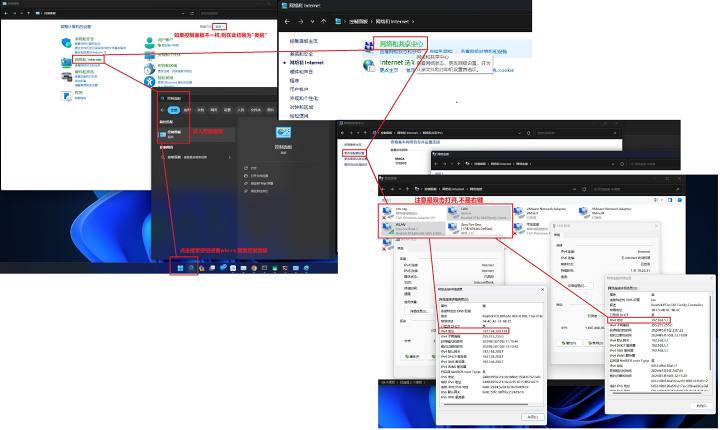
As shown in the figure, the IPs I need to record are: 192.168.5.7 and 192.168.200.128. These are for reference only; please refer to the actual situation
2. Query the current hopping values of these lines,
After confirming that the previous step recorded the IPv4 address of the line to be overlayed, hold down the Win logo + R, enter cmd and press Enter (or use the search method used in the previous step to search for "cmd") to open the command prompt and enter it in the prompt
route print -4
In the printed parameters, record the IPv4 hop values of these lines to be stacked
If you don't know which one it is, use the IPV4 address obtained in the previous steps for localization. For example, what I just recorded are 192.168.5.7 and 192.168.200.128. Look for them in the command prompt windowIP address, hop values are displayed after the IP address (this textbook has already changed this before, so all are set to 20; please refer to the values you can find for details.) The detailed operation is shown in the diagram.
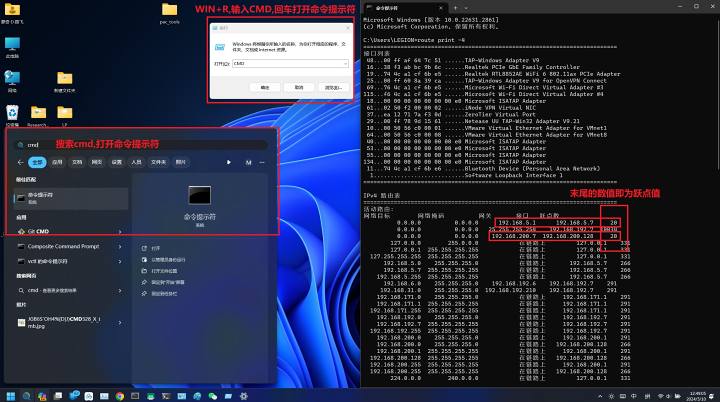
Record the hop values of all lines to be stacked so they can be used in the next steps
2. Change the hopping points of multiple lines to be superimposed to the same value
According to the diagram below, manually set a certain value for the IPv4 hopping points of the two lines you need to overlay, so that when added to the hop values queried in CMD in the previous step, both are 20.
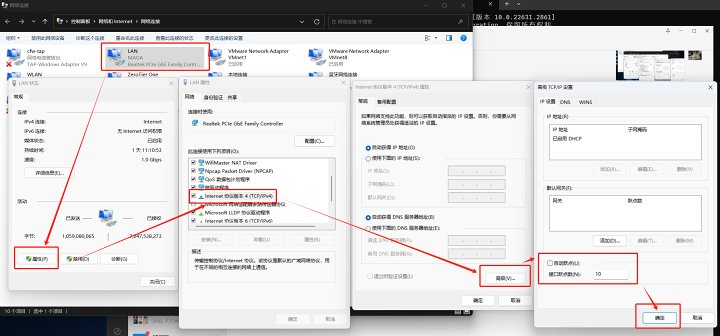
Note: This is protocol version 4. Do not click protocol version 6. If you cannot modify it, uncheck the auto jump
Example:
Suppose you find in the command prompt that line A has a jump of 10 and B has a jump of 12
In this hop modification window, set line A to 10 and line B to 8
Make it
Route A: 10+10=20
Line B: 12 + 8 = 20
Adding the hop values queried in the command prompt gives 20
3. Check whether the hop point modification was successful, and restart the adapterApplicationChange
Enter it in the command prompt
route print -4
Check whether the hopping points of the line to be overlaid are the same. If not, modify again as in Step 2 until all IPv4 hops found here are the same.
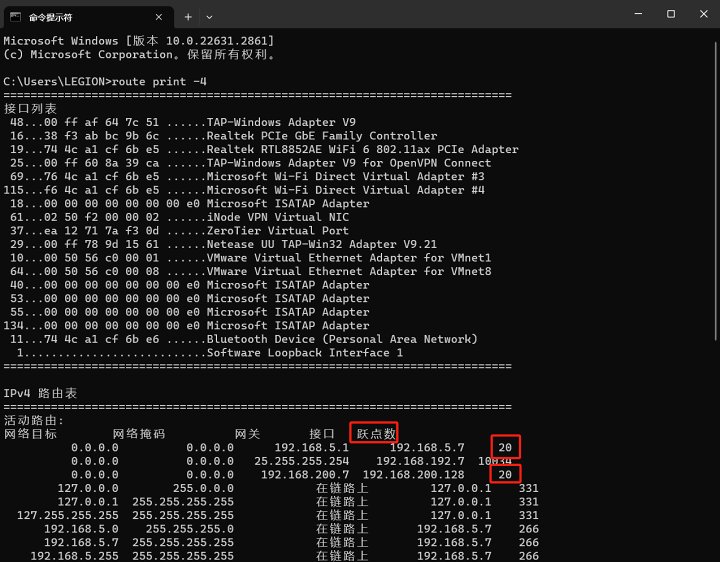
After confirming that the hopping points of the lines to be overlaid are all the same, check the control panelNetwork connectionReboot all network adapters for the lines to be overlayed, as shown in the figure below.
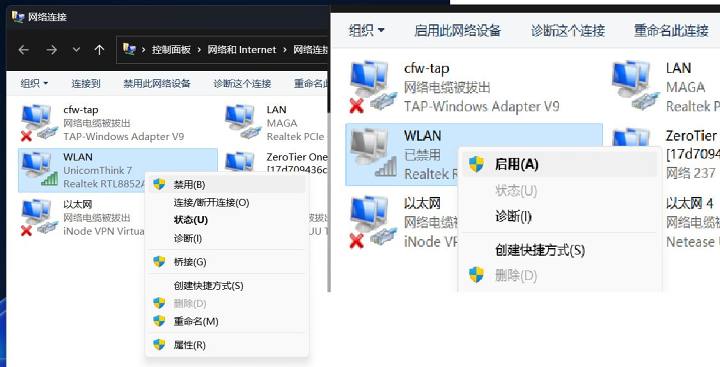
Right-click to disable, then right-click to enable, repeating each line once
4. After modifications, verify the effect
Open Task Manager according to the method provided in the diagram below
Or use a shortcut to open it:
Win11:Ctrl+Shift+Esc
Windows 10 and below: Ctrl+Alt+Del
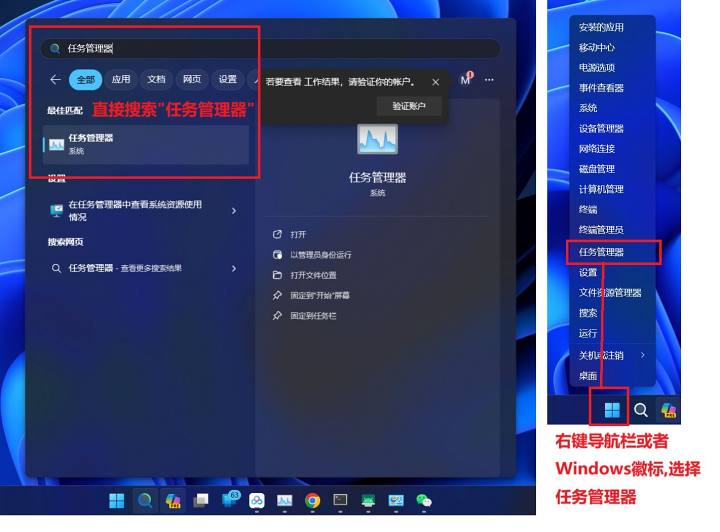
In Task Manager, select the "Performance" section
In the performance section, find the network adapter corresponding to the line you are stacking
For details, refer to the diagram below
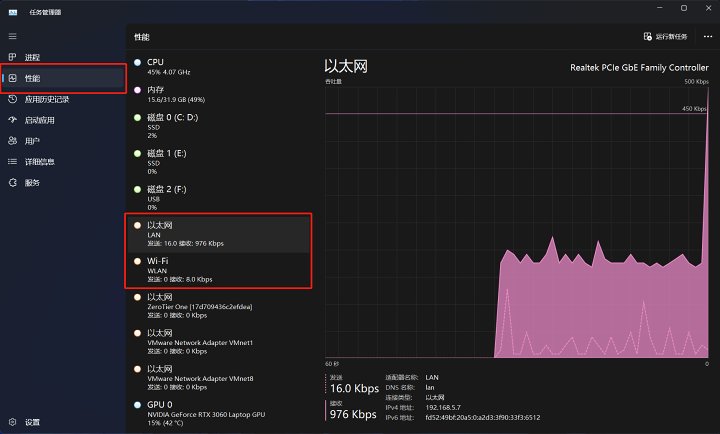
As shown in the picture, I found these two adapters
Open Baidu Netdisk, randomly download any file, and observe the reception of the network adapter in Task Manager. If both have traffic, the stacking is successful, as shown in the figure below
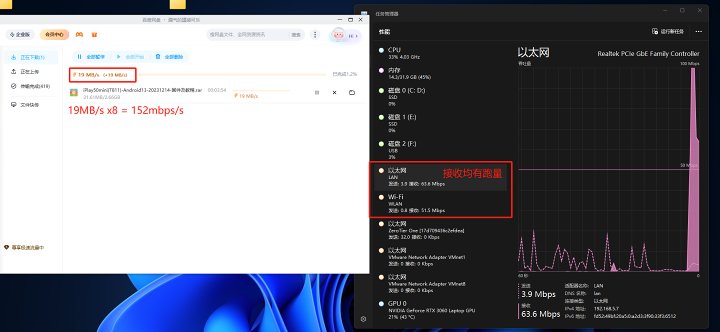
By combining two lines, it achieved a performance of 152 Mbps
Notes and possible reasons why the stacking may not take effect:
1. This method of overlaying lines only supports some software that supports multithreaded downloads. For web speed testing, watching videos,GamesIt may not be effective.
2. If it does not work in other software and is unsure whether the stacking has succeeded, please refer to the Baidu Netdisk download speed for details.
3. Make sure at least one line has IPv6 (which could also be mystical).
Original link:https://www.coolapk.com/…
![[Open Source Reading] January 2024 ≈ 400 carefully edited book source compilation and update - Baiyun Blog](https://www.bybk.cc/wp-content/uploads/img/af867764c3780f0b7da88376fca7bf92.png)
![[Open Source Reading] November 950+ carefully proofread book source compilation and update - Baiyun Blog](https://www.bybk.cc/wp-content/uploads/2023/02/Screenshot_20230222-1001582.png)

![[Open Source Reading] October 1300 Book Source Update - Baiyun Blog](https://www.bybk.cc/wp-content/uploads/img/1eeb6ae31cde88ab39faa2f19651638d.jpeg)
![[VMOS PRO 2.9.6 Member Edition] - Baiyun Blog](https://www.bybk.cc/wp-content/uploads/img/c303a7a50d3ebfa235cc380190db2980.png)
![[Open Source Reading] November 950+ carefully proofread book source compilation and update - Baiyun Blog](https://www.bybk.cc/wp-content/uploads/2023/02/Screenshot_20230222-1001582-1024x593.png)




No comments yet