
For most people, you can just open the icon in the built-in launcher and play on Android handhelds, but if you don't like the desktop look and want to make some modifications yourself,Beautificationthen this tutorial can also serve as a related reference.
PS: This tutorial is recommended for devices running Android 4.4 or above. Lower-tier Android handheld consoles may not achieve the best results. (Although ATV has a modified desktop version supporting at least Android 4.1.) )
Here are some Android Launchers I have discovered and used so far.
1. Console starter
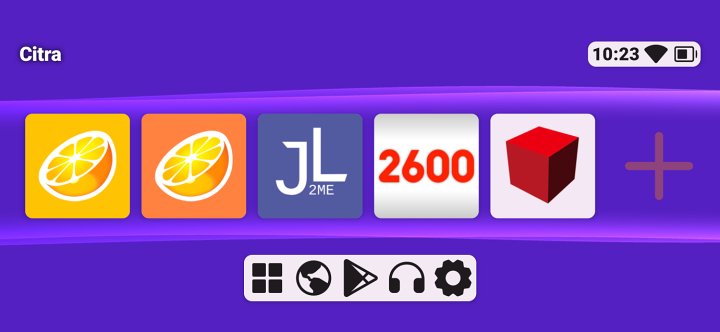

A newly launched launcher on Google Play not long ago, but I can only say the interface doesn't quite suit my personal taste, and some good features require paying for the premium version. (If you pay in China, you'll need to find a dual-currency credit card; it's basically impossible to buy the genuine one.)
2.NX Launcher
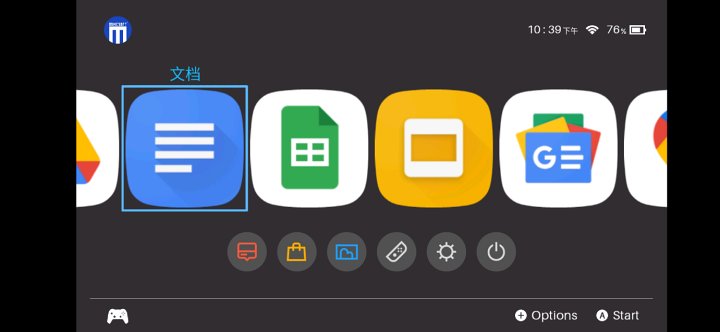
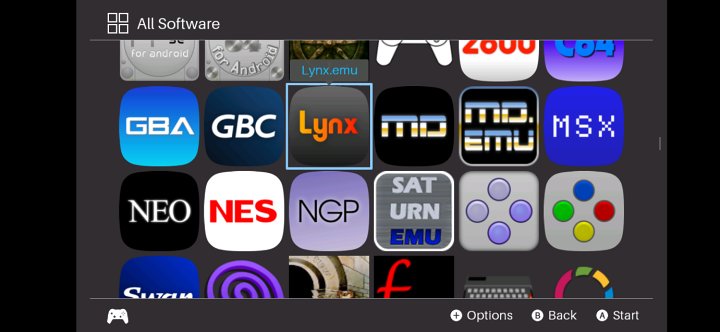
A replica I found last year on a foreign language websiteSwitchThe interface was called NS Launcher at the time, but later the updated version on Google Play became NX launcher.
After all, it's a high-quality Switch UI, so the appearance is still decent, though the aesthetics are slightly more attractive than usable. Although you can make a 1:1 icon to replace it, I haven't tried how the 1:1 scale icon looks after modification.
3.ATV Launcher
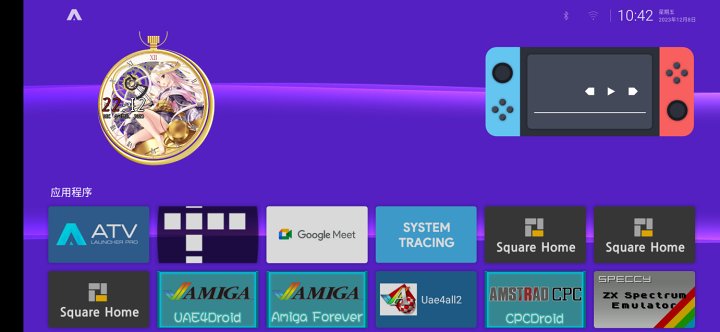
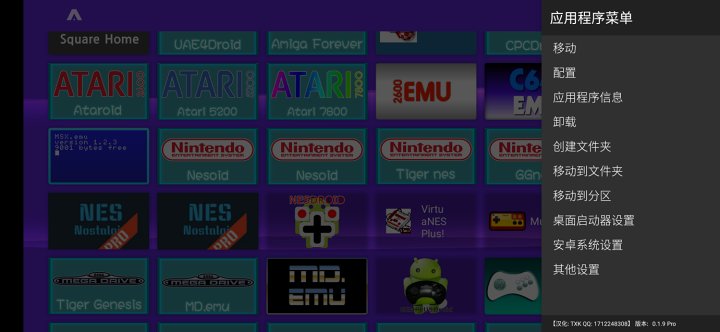
Although this desktop is quite popular on Android TVs, in recent years some Android handheld devices have started using it, and the customization interface is quite effective.
4.Square Home
An Android Launcher that mimics the Windows Phone interface also performs quite well, but to beautify the desktop with this feature, a certain level of design quality is required.
5.Cross launcher
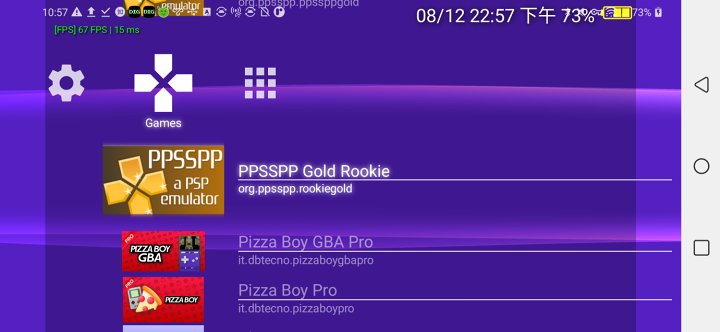
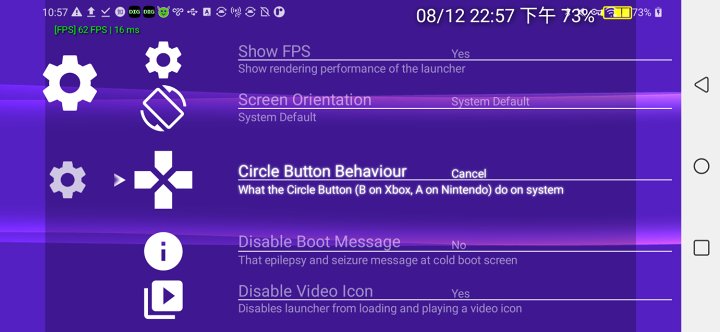
I found a launcher on GitHub that mimics Sony's XMB, allowing you to adjust the PS3 and PSP interfaces. However, the desktop customization options aren't great—you can't change app icons or what icons look like. Here, the display is just like the NS Launcher above—aesthetics outweigh practicality.
6.XPMB
If we want to talk more about this desktop, the earliest dates back to a 2013 post on the XDA forum.
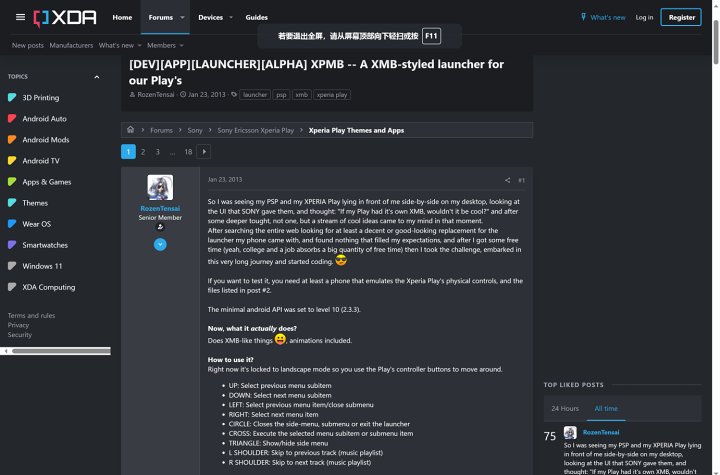
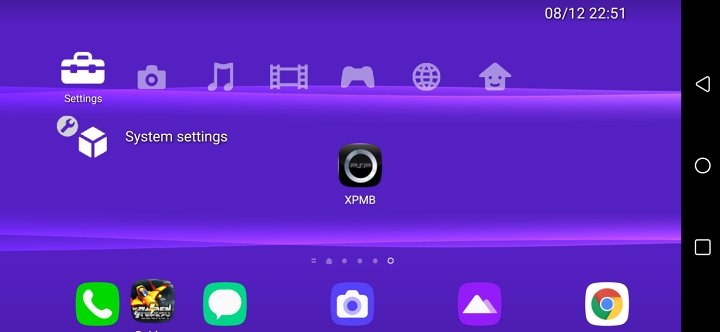
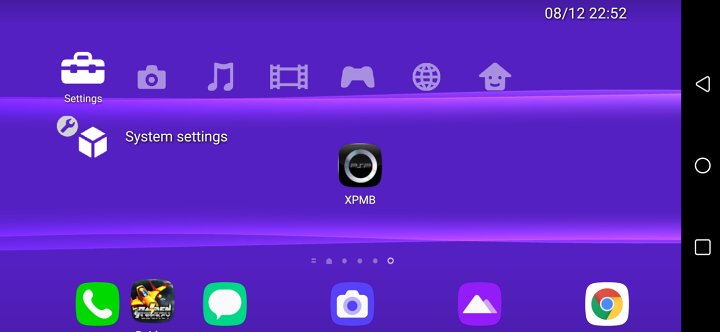
As a launcher that appeared shortly after the Xperia Play's release, XPMB is one of the earliest launchers to mimic Sony's XMB interface, and the author initially intended it to be suitable for Xperia Play models.
However, due to its long age and discontinued updates, combined with screens above 720P and newer systems, it lacks some ease of use. Additionally, some bugs appeared in higher versions of Android, making it one of the early Android launchers where appearance outweighs practical value, and its functionality cannot compare to other launchers.
[How to Create an Icon for ATV Launcher]
Currently, ATV Launcher is the one I use the most. This article mainly focuses on how to create icons for emulators/Android games without them, as a substitute for the built-in style icons of ATV Launcher.
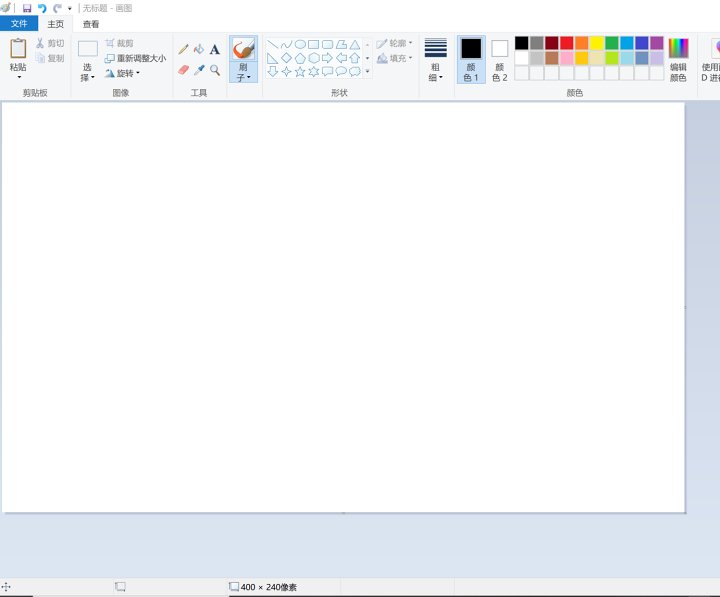
First, open Sketch, then create a 400x240 resolution image.
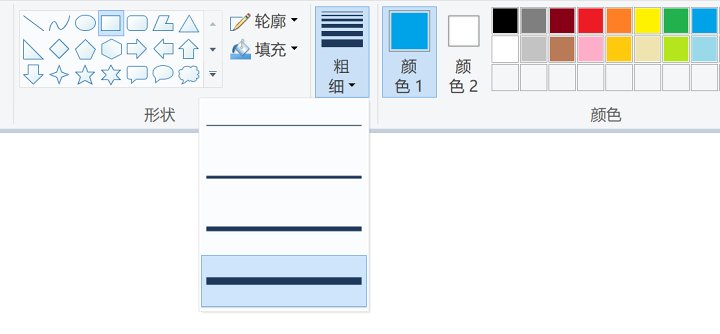
Then select the square tool, choose the fourth option for thickness, and set the color to blue.
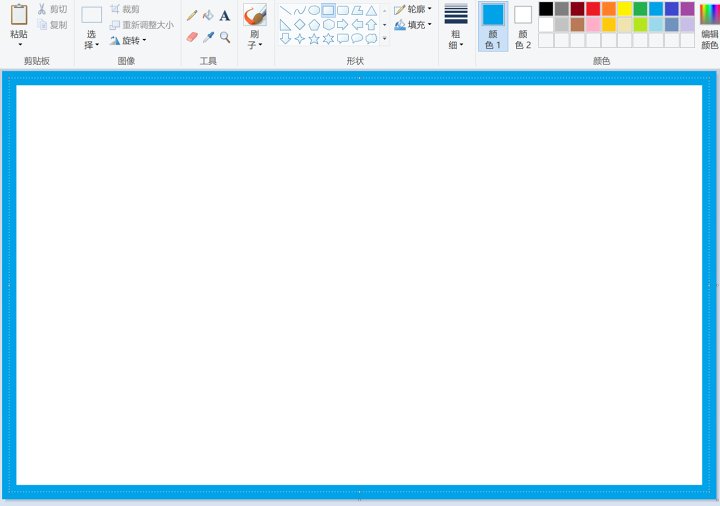
Then, draw a rectangle around the outermost part of the picture.

After drawing, draw another rectangle enclosing it on the inside.
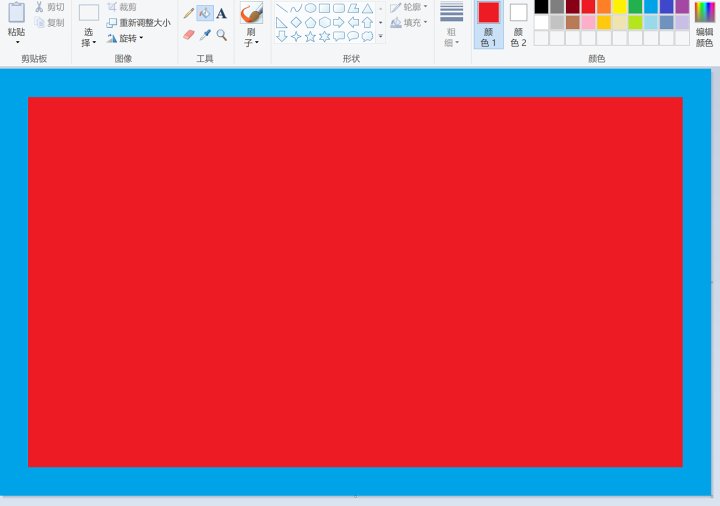
Then select the fill tool, fill the white area in the center with red, and save the image as PNG format.
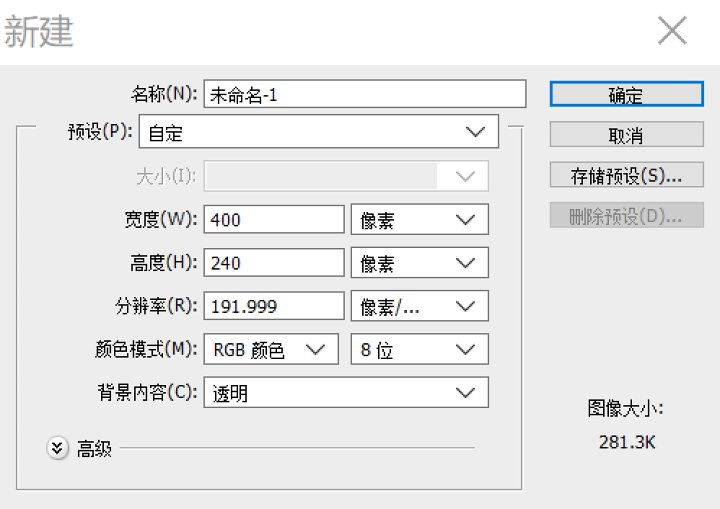
Next, open Adobe Photoshop CS6 and create a new project with a pixel size of 400X240. The specific parameters are shown in the figure.
Then click the 'Insert' option in the file at the top left and insert the image we just created with the Paint program.
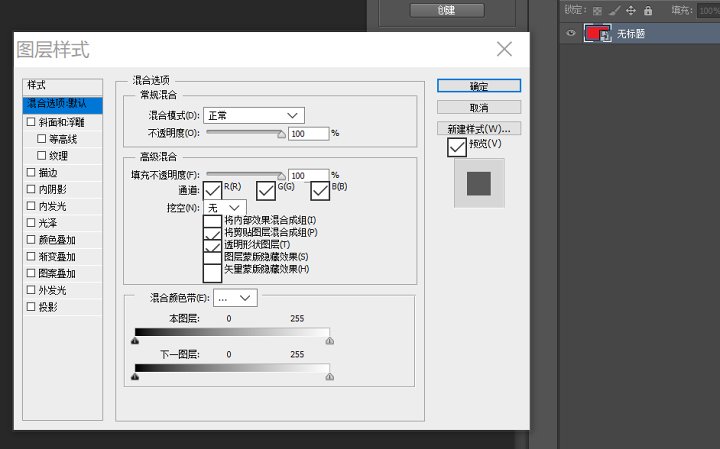
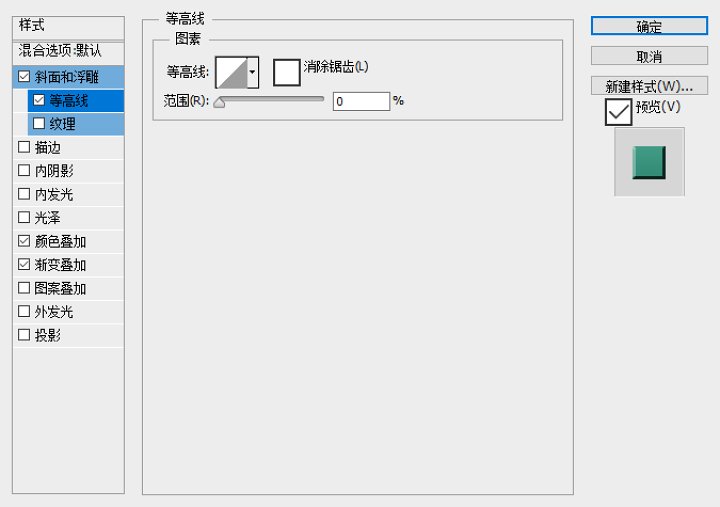
Then, right-click on the layer on the right and select Blend options.
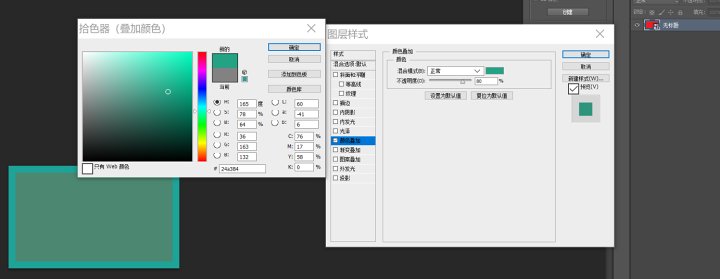
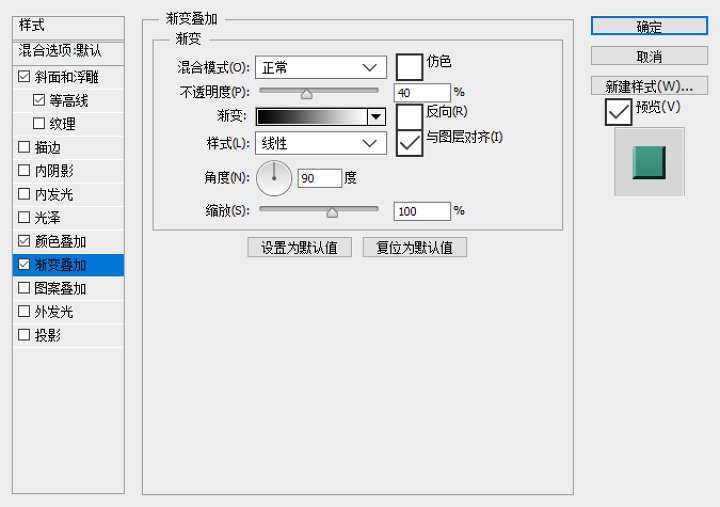
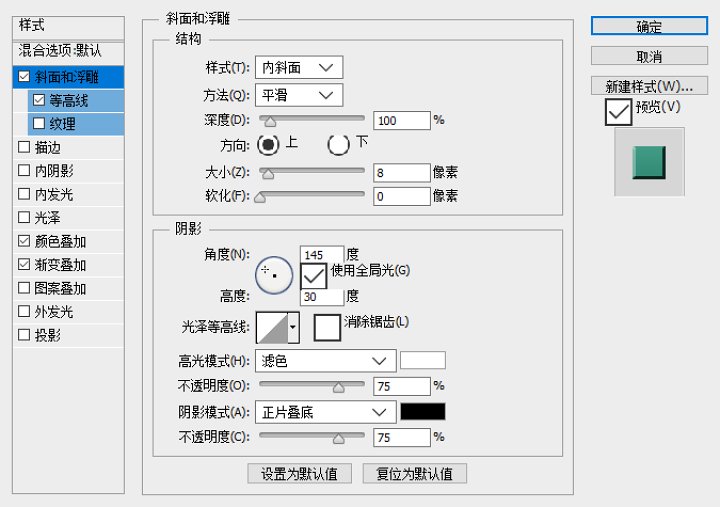
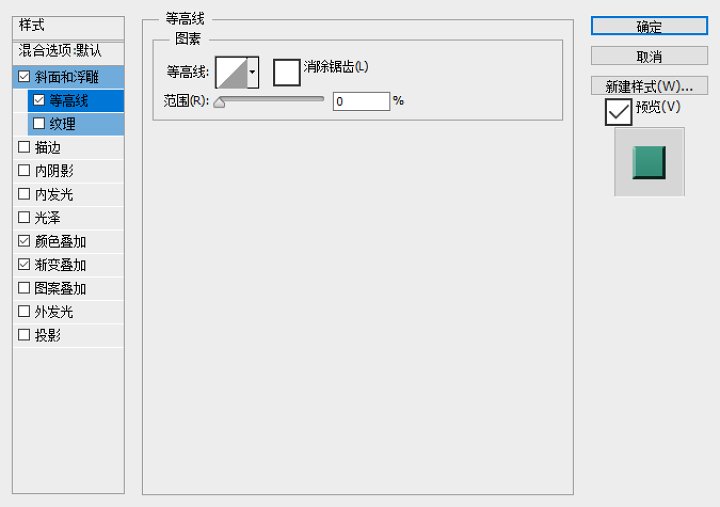
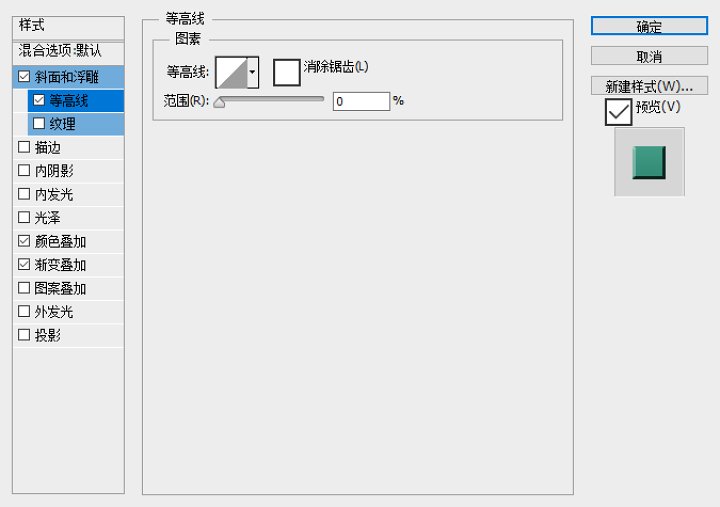
You can refer to my settings for the relevant options here.
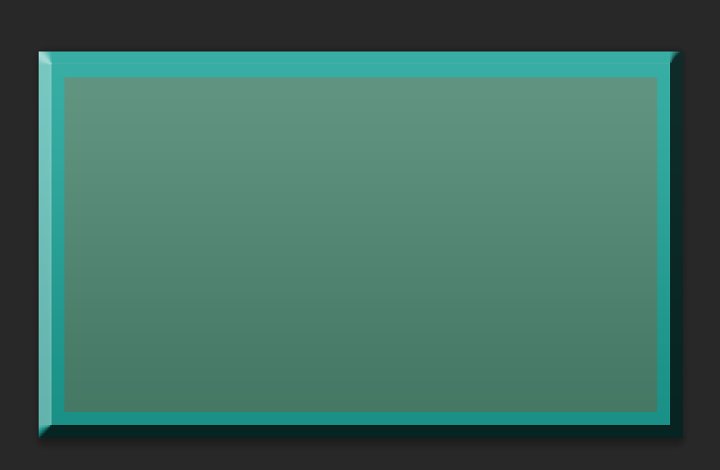
As expected, this is exactly the effect it shows.
Next, we can proceed with production according to the platform simulated by the simulator.
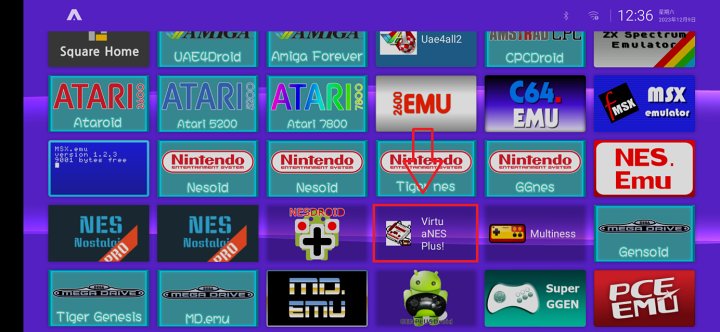
For example, if there's an FC emulator on the ATV desktop without an icon, we remember the platform it is simulating.
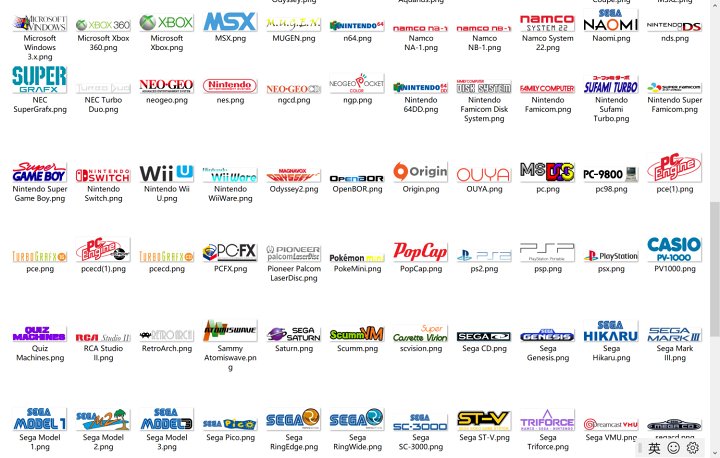
Previously, I found these logos in a theme on a foreign DIG frontend.
Then, use the Photoshop insert option to open this folder and find the NES logo inside. Then insert the logo into the project.
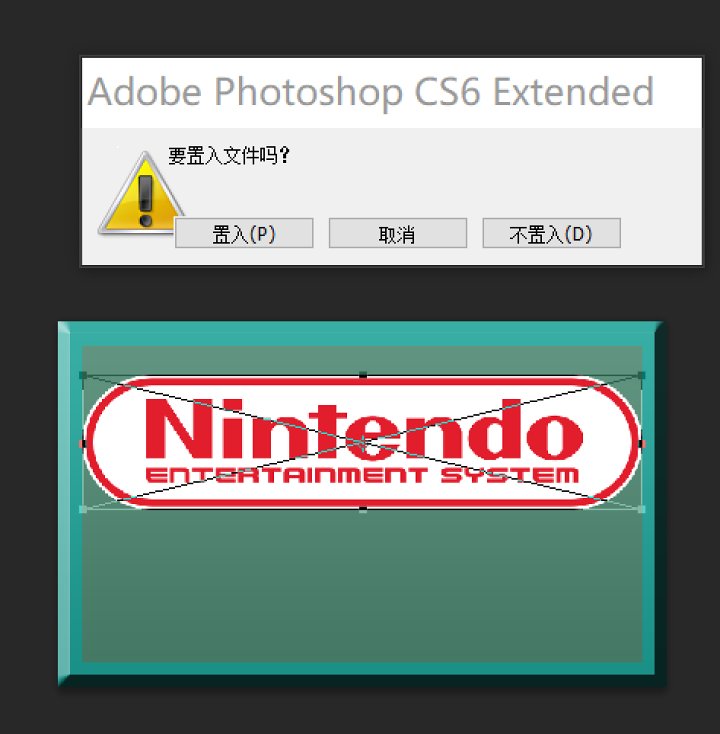
If you mind the logo sticking out, you can adjust the size to roughly proportion.
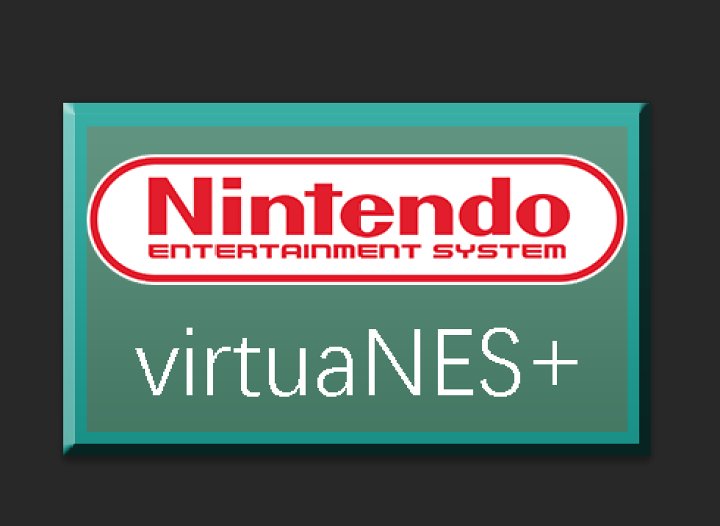
Next, we can create the text displayed below. You can also choose your preferred font, then type the name into the emulator.
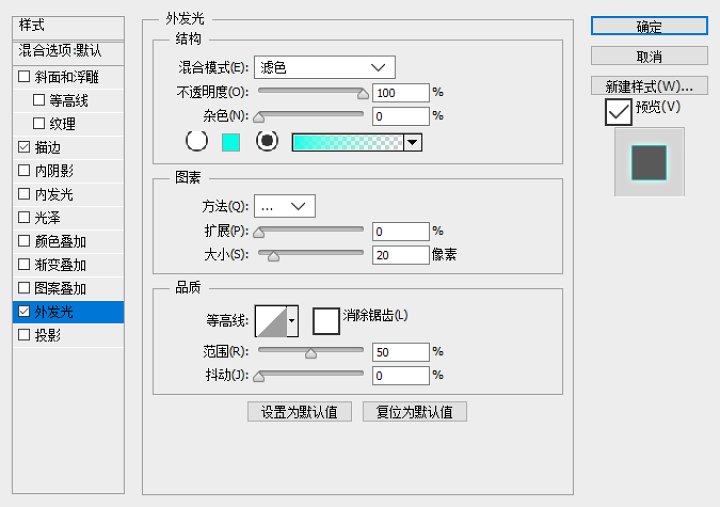
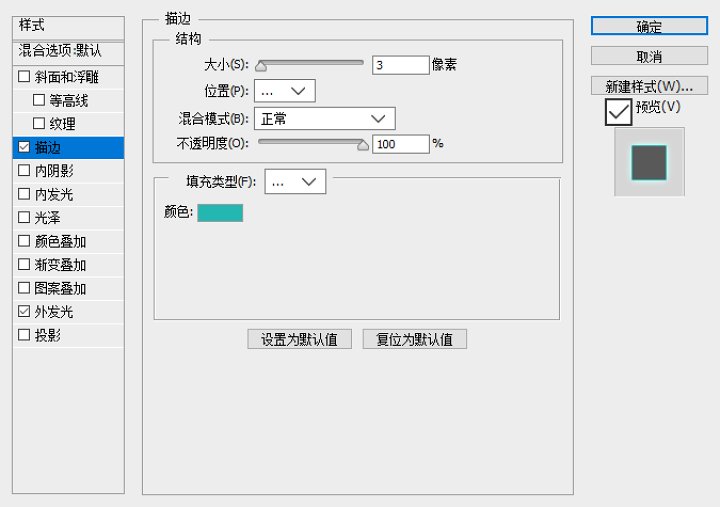
I personally chose the external lighting option for the font.
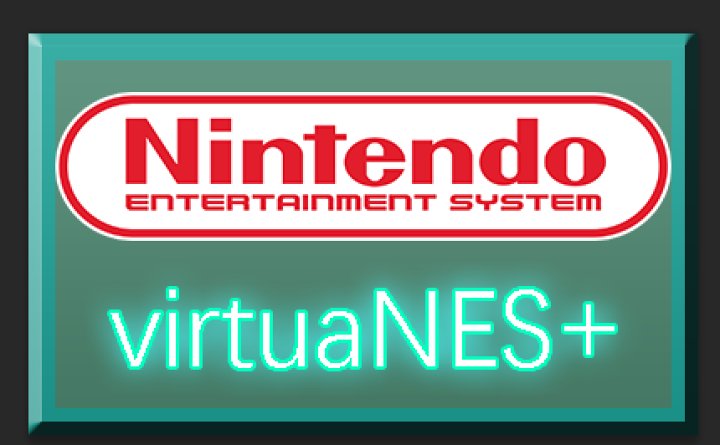
Alright, the emulator image is done. Next, export the PNG, and remember to create a folder on your phone specifically for the finished icon materials.
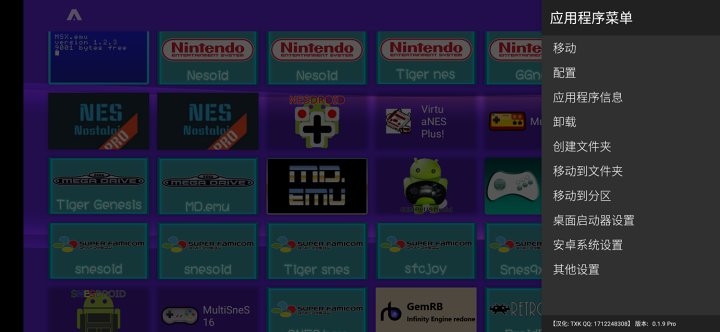
Then, open ATV Launcher on your Android device, long-press the icon you want to modify, and click on the configuration options.
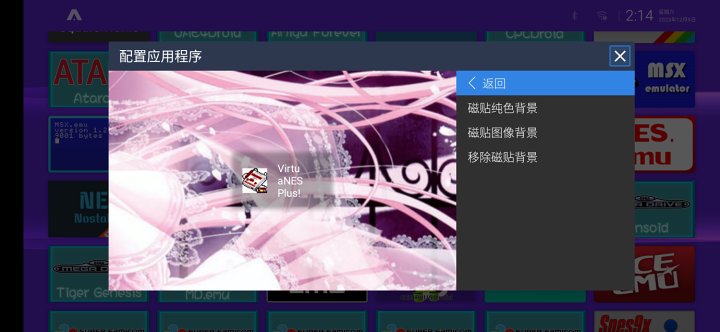
Then choose to modify the tile image background in the tile's background, find the path where you want to store the icon, and choose the icon you want to replace.
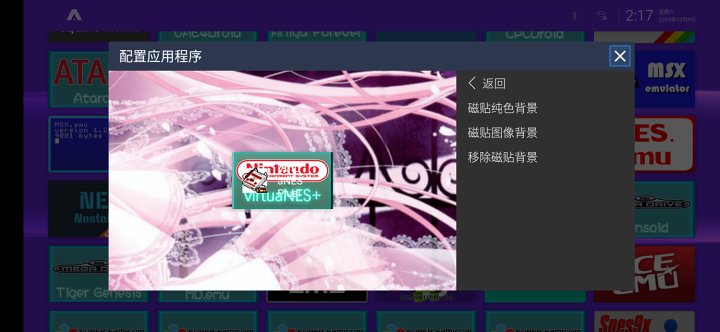
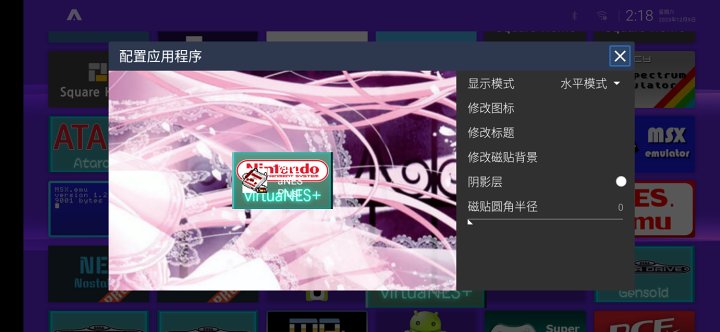
Then set the fillet radius of the tile to 0, and do not check the shadow layer.
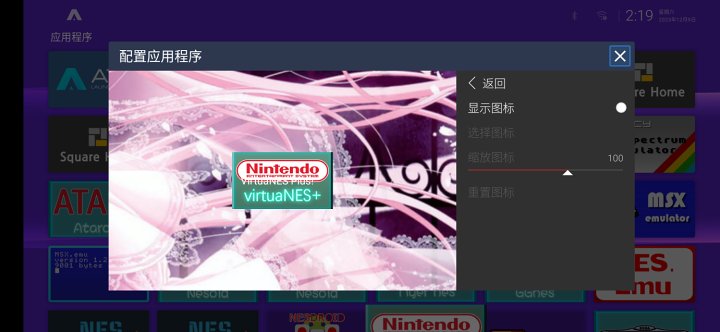
Do not check the display icon option in the Icon Modification option.
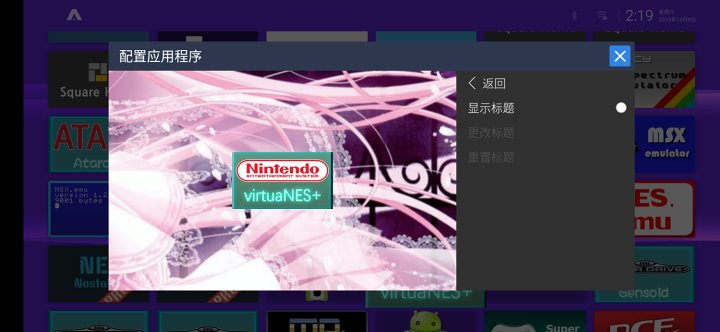
In the Title Modification section, do not check Show Title to successfully modify the tile.
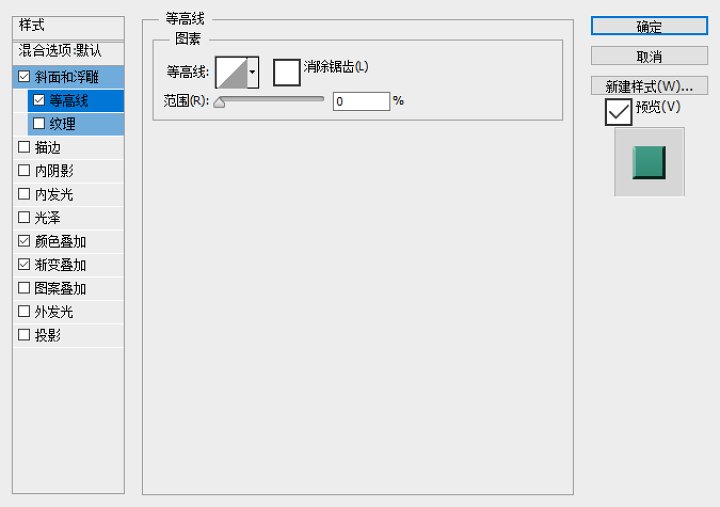
Since I use this unified method for most icons not adapted for ATV Launcher purely for convenience, those emulator icons are saved as PSD files based on a single framework for use as templates.
So there's another question: Android games and system apps don't have icons or logos—what should you do?
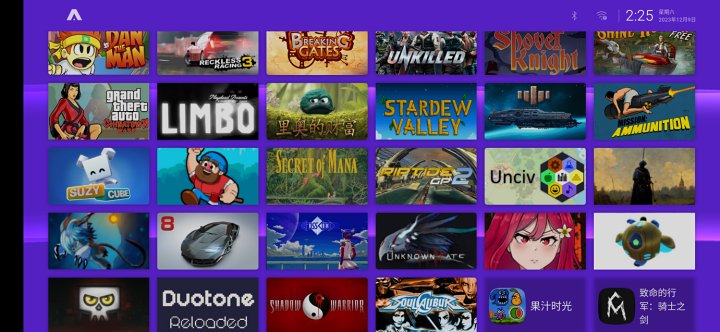
(Not all Android game icons here are homemade)
There's an idiom called 'learning and applying it well.' You can take a screenshot of the game title logo in the game and crop it to 16:10 or 16:9.
Or you can get promotional images from game publishers or get creative and create them based on the game's theme.
As for system software, I personally created several separate folders for software unrelated to emulators or Android games and stuffed them inside.
Actually, Square Home can also achieve good results. It's just that I never had any good ideas, so I didn't tinker with the desktop. Here's a screenshot posted by someone in the open-source handheld forum.
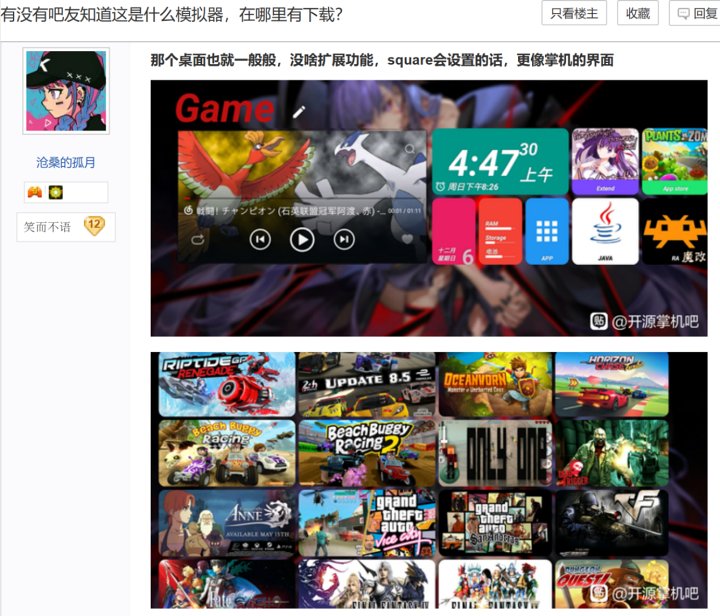
—About Android Wallpapers and Desktop Widgets—
There's really no need to mention this one; you can set the GIF animation as your desktop background or look for it on Pixiv.
About Android Desktop Widgets.........
I want to write too, but many app distribution platforms don't have many resources, and it's hard to find Android desktop widgets from ancient times.
But there's another thing: KWGT and KLWP. The former lets you create custom desktop widgets on your desktop, while the latter lets you create custom dynamic desktops. If you're interested, you can check out how to make them.
That's all for Chapter One.
Android handheld setup and beautification tutorial (2): Overview of multi-platform emulator configurations, stay tuned.
Original link:https://www.coolapk.com/…
The original author of this article has authorized reproduction
![[Text and Image Summary] Summary of Terminals Currently Supporting 5G-A Carrier Aggregation --- Includes How to Check Carrier Aggregation Enabled on iOS - Baiyun Blog](https://www.bybk.cc/wp-content/uploads/2024/04/20240407140712630-e26ee861710dd3b075a1302dd00392d5e1db60a1.jpeg)

![[Open Source Reading] January 2024 ≈ 400 carefully edited book source compilation and update - Baiyun Blog](https://www.bybk.cc/wp-content/uploads/img/af867764c3780f0b7da88376fca7bf92.png)
![[Open Source Reading] November 950+ carefully proofread book source compilation and update - Baiyun Blog](https://www.bybk.cc/wp-content/uploads/2023/02/Screenshot_20230222-1001582-1024x593.png)
![[Open Source Reading] October 1300 Book Source Update - Baiyun Blog](https://www.bybk.cc/wp-content/uploads/img/1eeb6ae31cde88ab39faa2f19651638d.jpeg)
![[VMOS PRO 2.9.6 Member Edition] - Baiyun Blog](https://www.bybk.cc/wp-content/uploads/img/c303a7a50d3ebfa235cc380190db2980.png)




No comments yet