
Update one AGC9.2@四时山河The big shot's 21-in-1 new configuration. This configuration makes it easier to get better photos, and the image quality keeps getting better.
Basically all Meizu series can be used, except for the 20, which can't be without a wide-angle lens.
Configuration Description
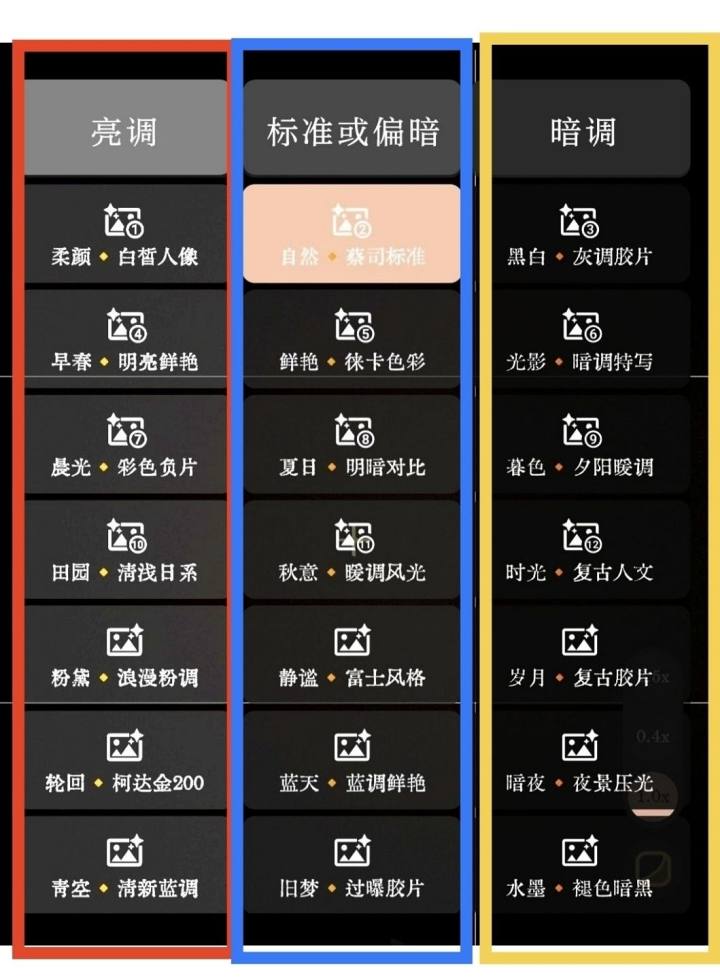
❤️ Red box inside - image is relatively bright
Inside the blue box - image standard light
?Yellow box - image tends to be darker (dark)
Installation method
Step one: Download the installation package. After downloading, just install it directly.
Meizu 20 and Meizu 21 (using the 20Pro installation package)
Meizu 20 Wujie and 21 Pro (Wujie installation package)
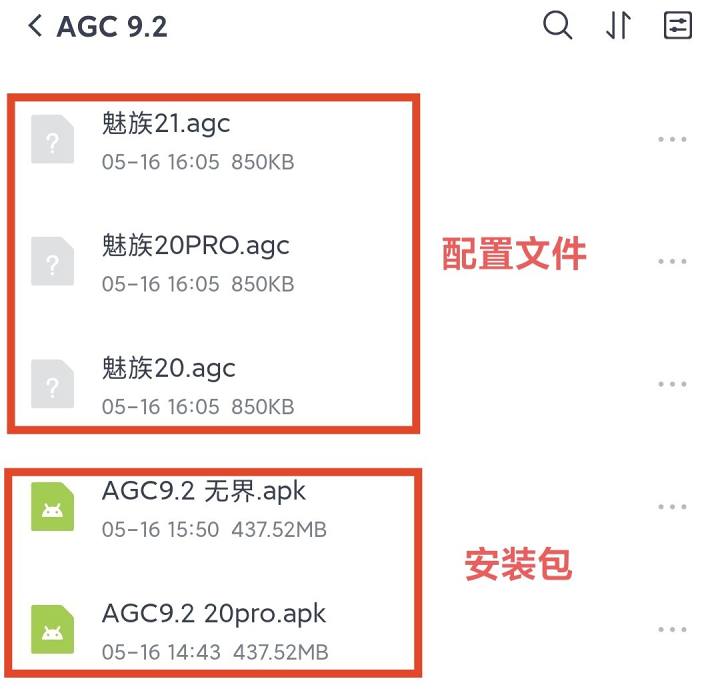
Step 2: Download the configuration
Meizu 20 Wujie and 21 Pro (with 20 Pro configuration)
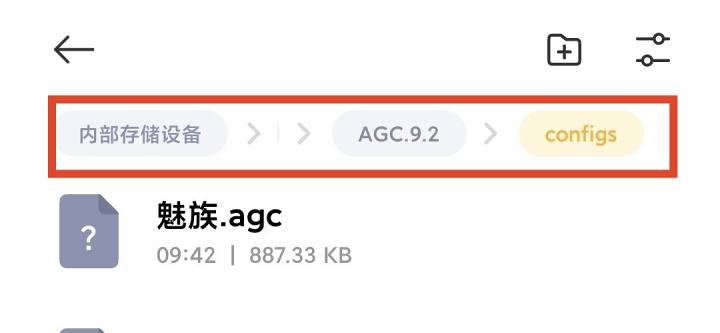
After downloading the configuration,
Configure it in -download-agc9.2-configs.
If you don't have a configs folder, you can create one yourself.
Step three
1. EnterGoogle Camera, remember to grant permission. (After entering Google Camera - Open More Settings, also enable permissions, otherwise you won't be able to load configurations)
2. Click the icon in the upper right corner, then click "Load configuration"
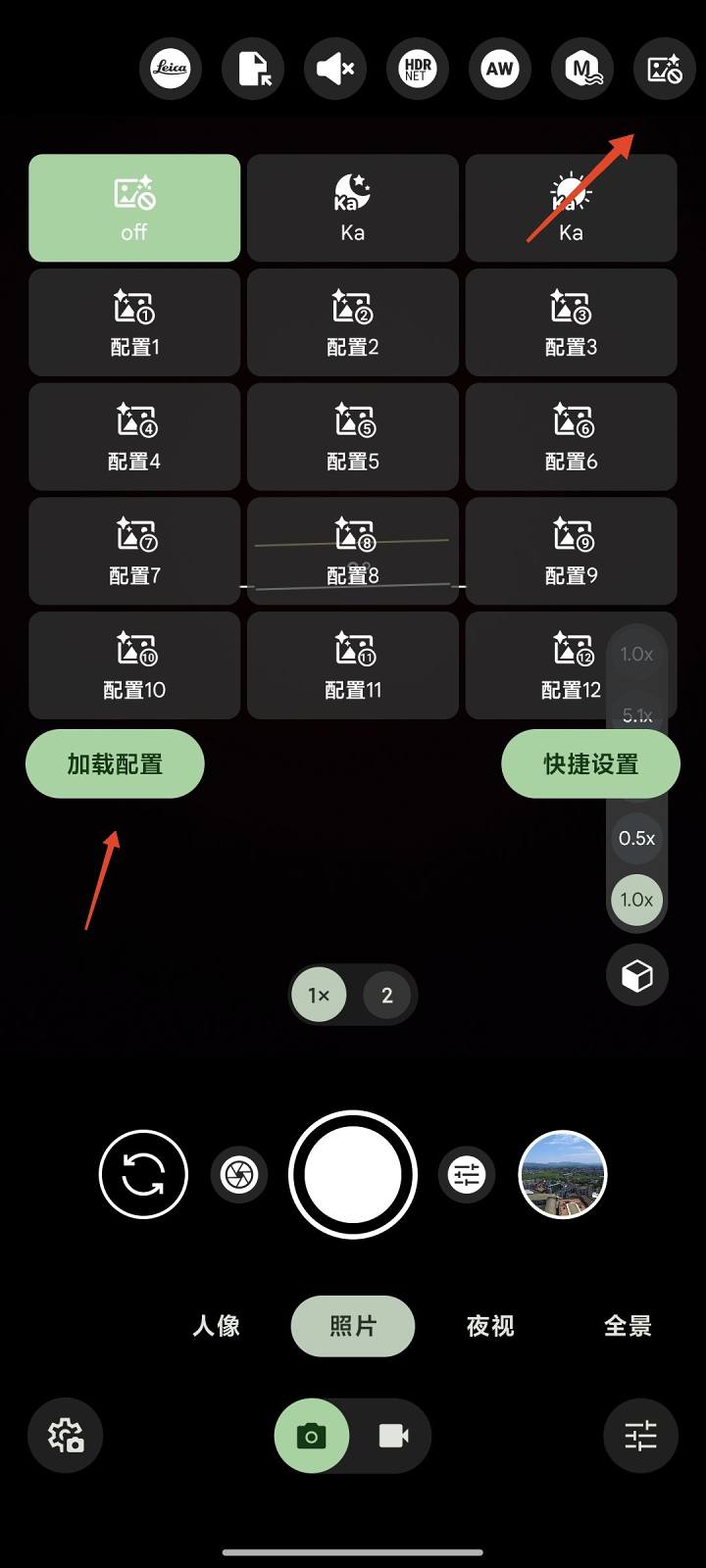
If you can't load the configuration, go to More Settings, enable storage permission, then go back to load it
If the configuration mode is inaccurate after loading, go to More Settings - Lens Settings - Number of Configurations (change to 21)
Feature introduction
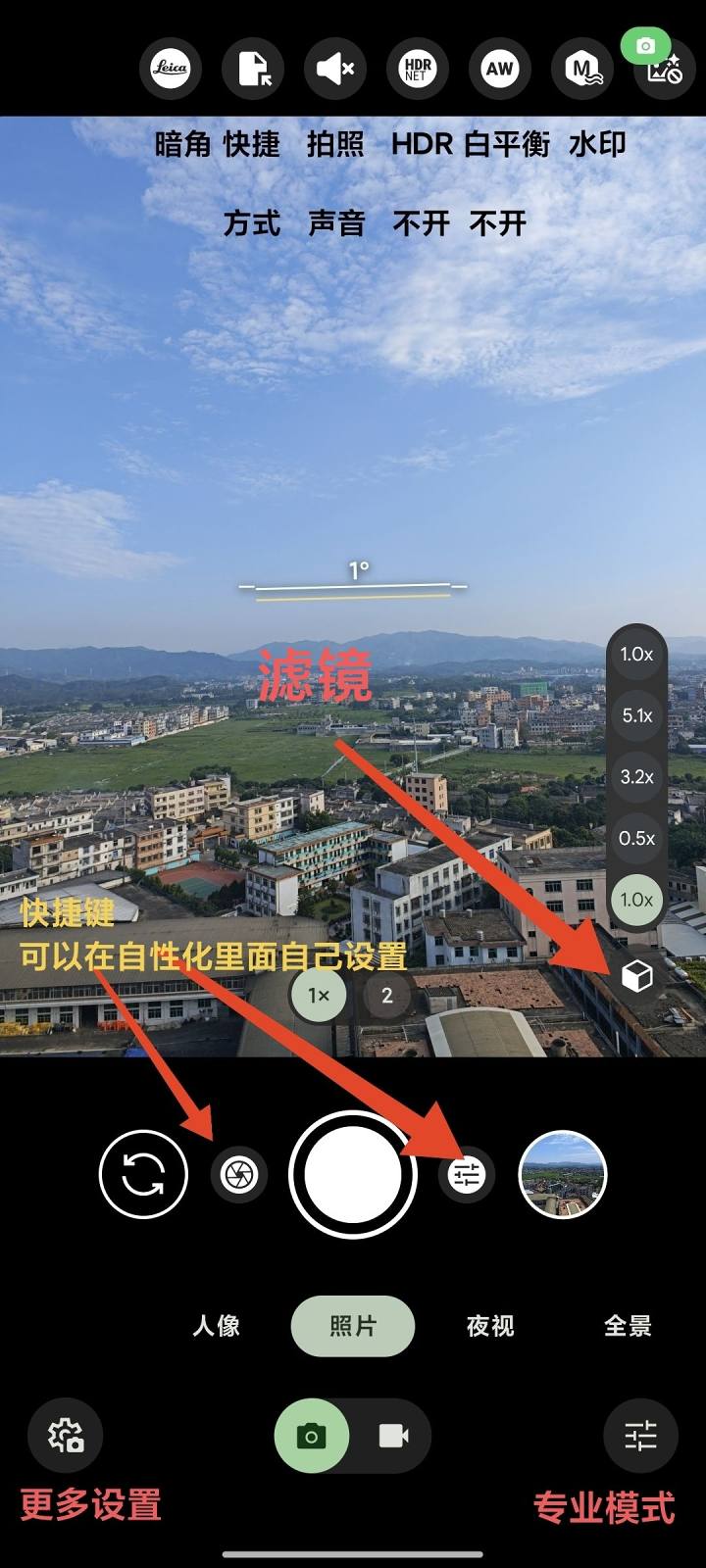
The one shown aboveHDR NET andWhite balanceGenerally, it is not recommended to open it.
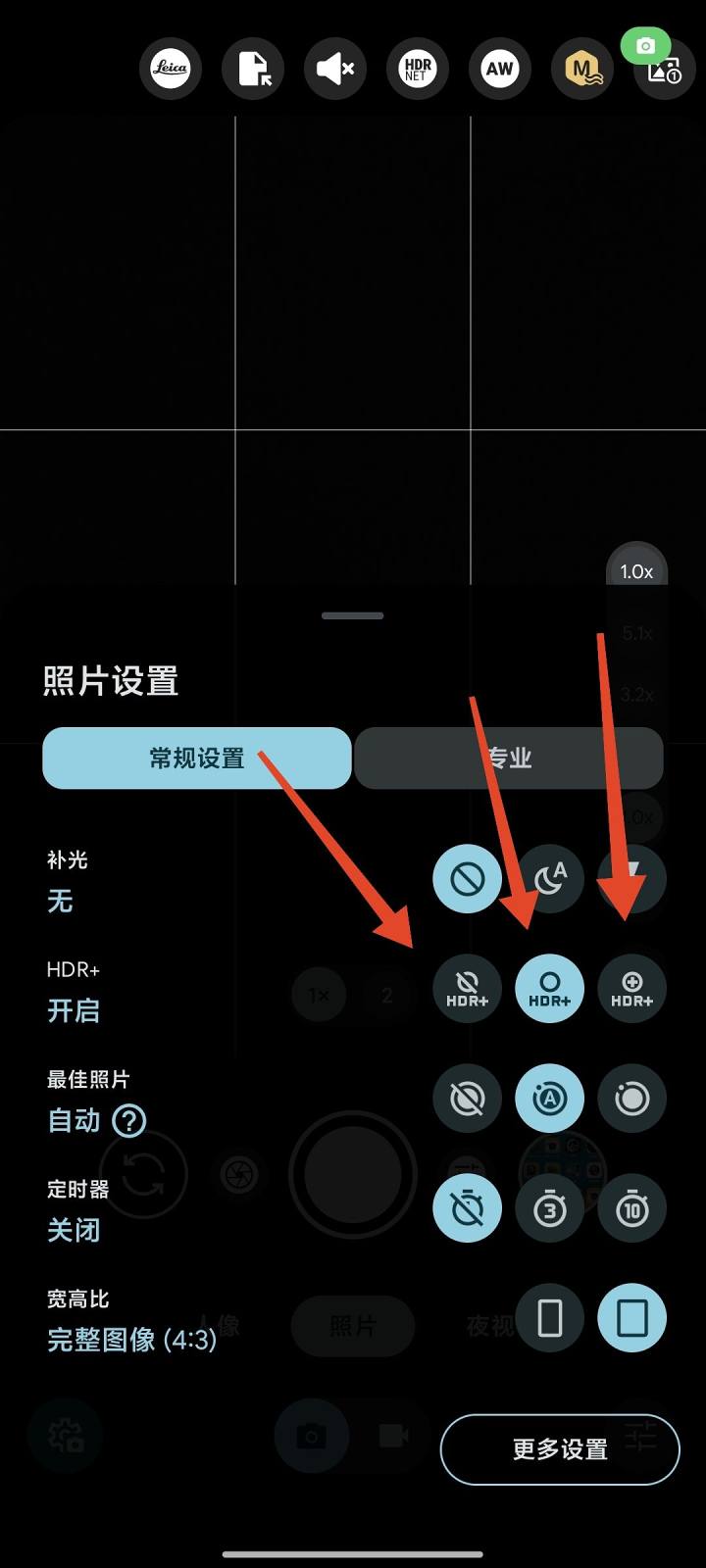
HDR application description
Make sure to enable HDR enhancement (as shown above). Turning off HDR makes it no different from the original camera, since the algorithm is provided by HDR.
(1) The middle HDR+ is suitable for quick snapshots or in well-lit scenes,
(2) The third HDR+ enhancement on the right is suitable for areas with weaker lighting or where better detail is needed. This image rotates slowly during shooting, but the quality is better.
3. After the system upgrade, when starting with watermarks, images may appear blurry but magnified to be clear. Just install Google Photos in the connection settings.
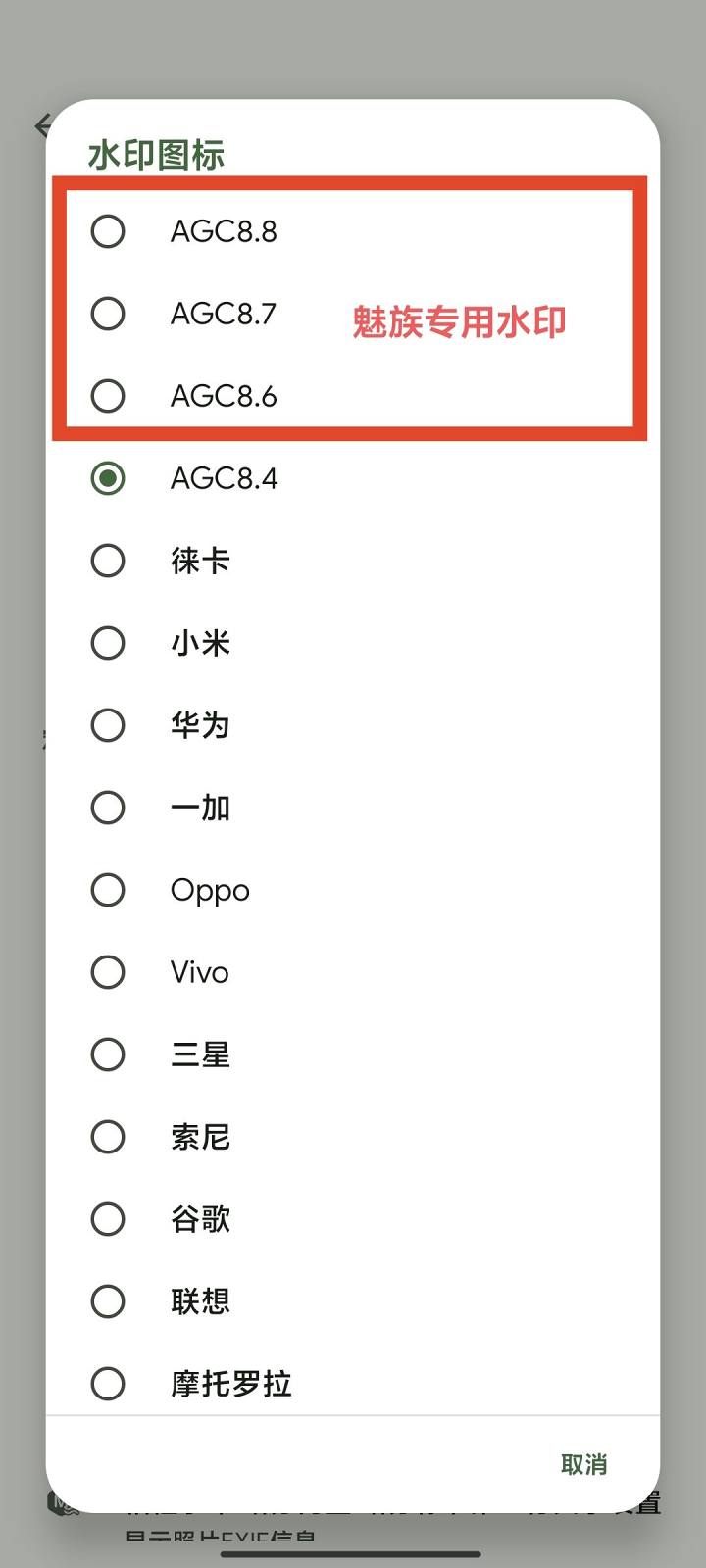
4. Access More Settings -Watermark settings- Watermark icons: 8.6~8.8, these three are Meizu's exclusive watermarks. If you like them, go switch them.
One last question: after installation, remember to long-press the Google Camera icon,Permission management, turn on the accelerometer (otherwise the image won't rotate).
If you can't find it, go to your phone's system settings ~ Permission Management, inside it
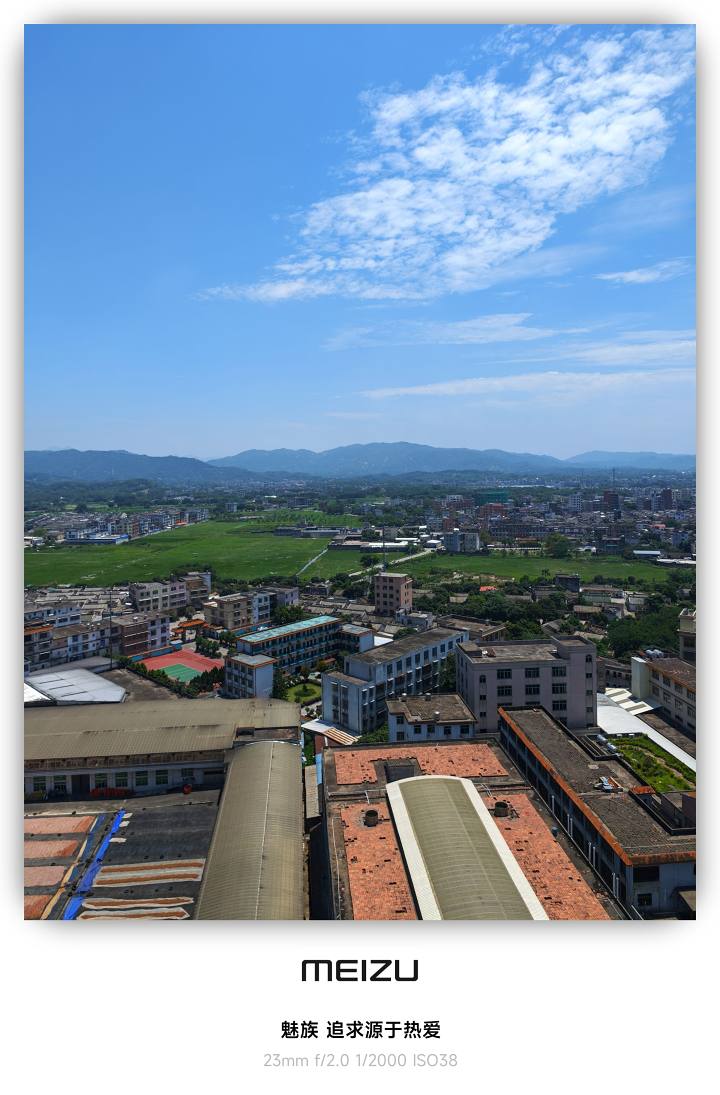
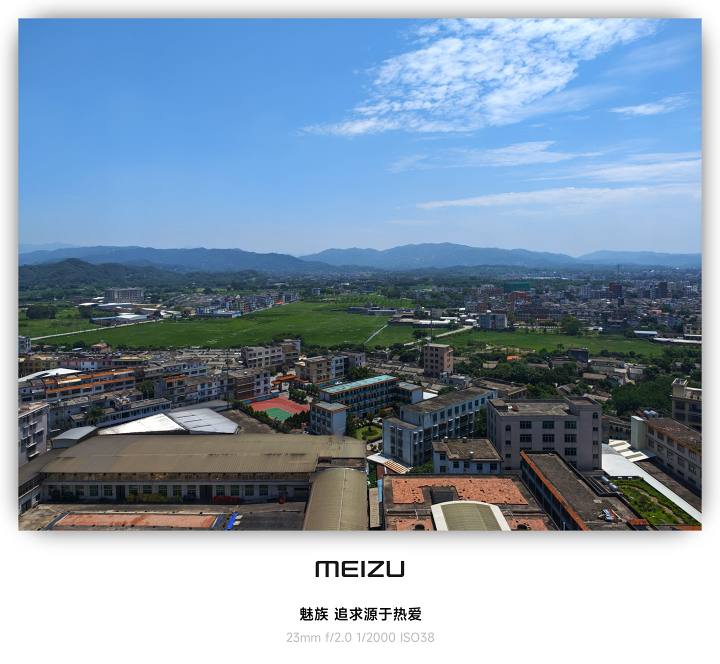
I just snapped a few random photos.
Download link
View the linkExtraction code: fsLh
![[Open Source Reading] January 2024 ≈ 400 carefully edited book source compilation and update - Baiyun Blog](https://www.bybk.cc/wp-content/uploads/img/af867764c3780f0b7da88376fca7bf92.png)
![[Open Source Reading] November 950+ carefully proofread book source compilation and update - Baiyun Blog](https://www.bybk.cc/wp-content/uploads/2023/02/Screenshot_20230222-1001582.png)
![[Open Source Reading] October 1300 Book Source Update - Baiyun Blog](https://www.bybk.cc/wp-content/uploads/img/1eeb6ae31cde88ab39faa2f19651638d.jpeg)
![[VMOS PRO 2.9.6 Member Edition] - Baiyun Blog](https://www.bybk.cc/wp-content/uploads/img/c303a7a50d3ebfa235cc380190db2980.png)
![[Open Source Reading] November 950+ carefully proofread book source compilation and update - Baiyun Blog](https://www.bybk.cc/wp-content/uploads/2023/02/Screenshot_20230222-1001582-1024x593.png)




No comments yet